Baila Hantsis

A Comprehensive Case Study
MealVue
The Future of Meal Planning & Inventory Management
UX/UI Designer
Feb. 2026 - Current
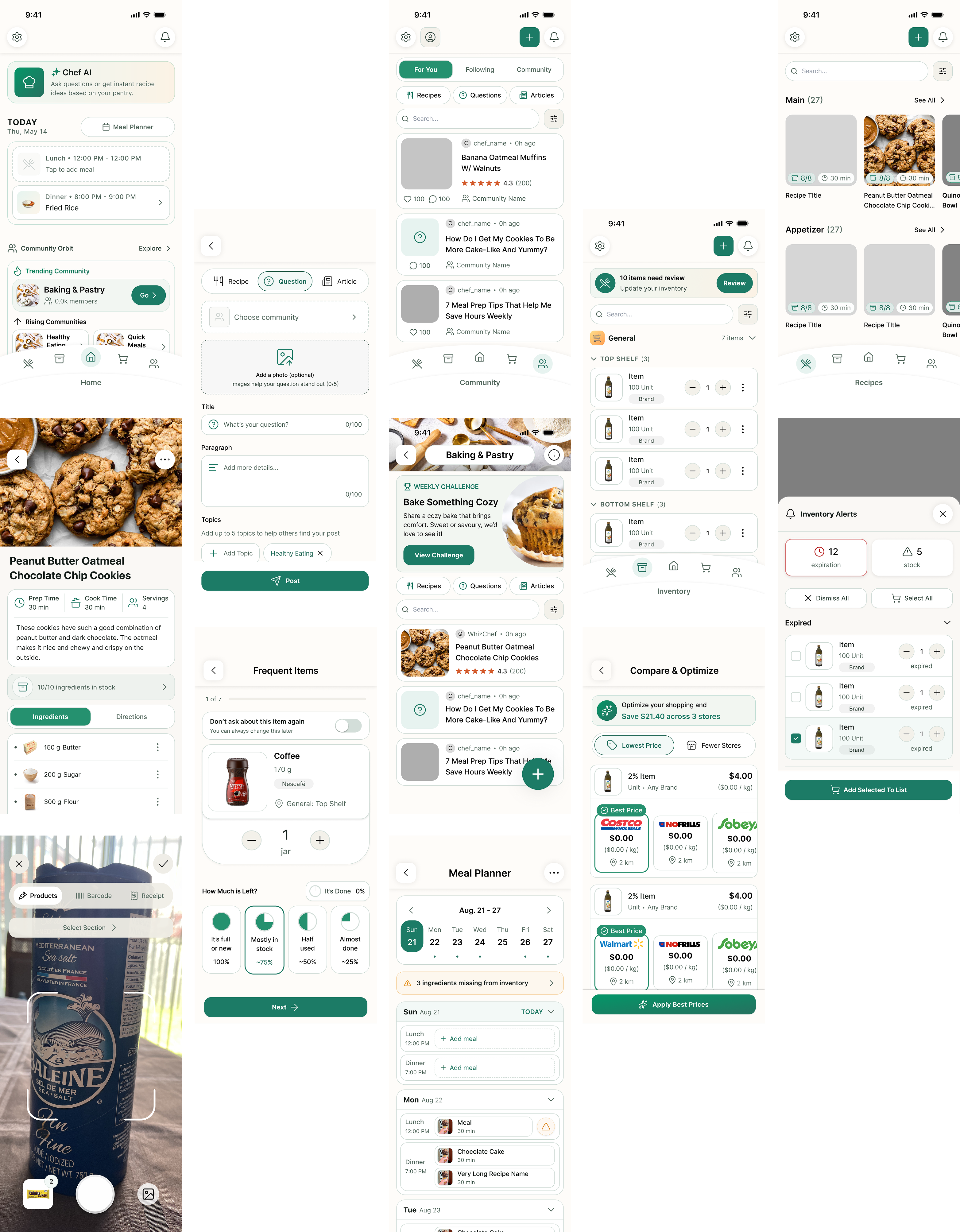
MealVue Platform Redesign
MealLens requested a complete redesign of their MealVue app. The goal was to prioritize accessibility while additionally integrating features that would be more understandable and user-friendly.
Background
MealLens aims to simplify kitchen inventory management and cooking for the average person, giving them more time to focus on what matters most. Spending quality time with family, or simply enjoying their day without stress.
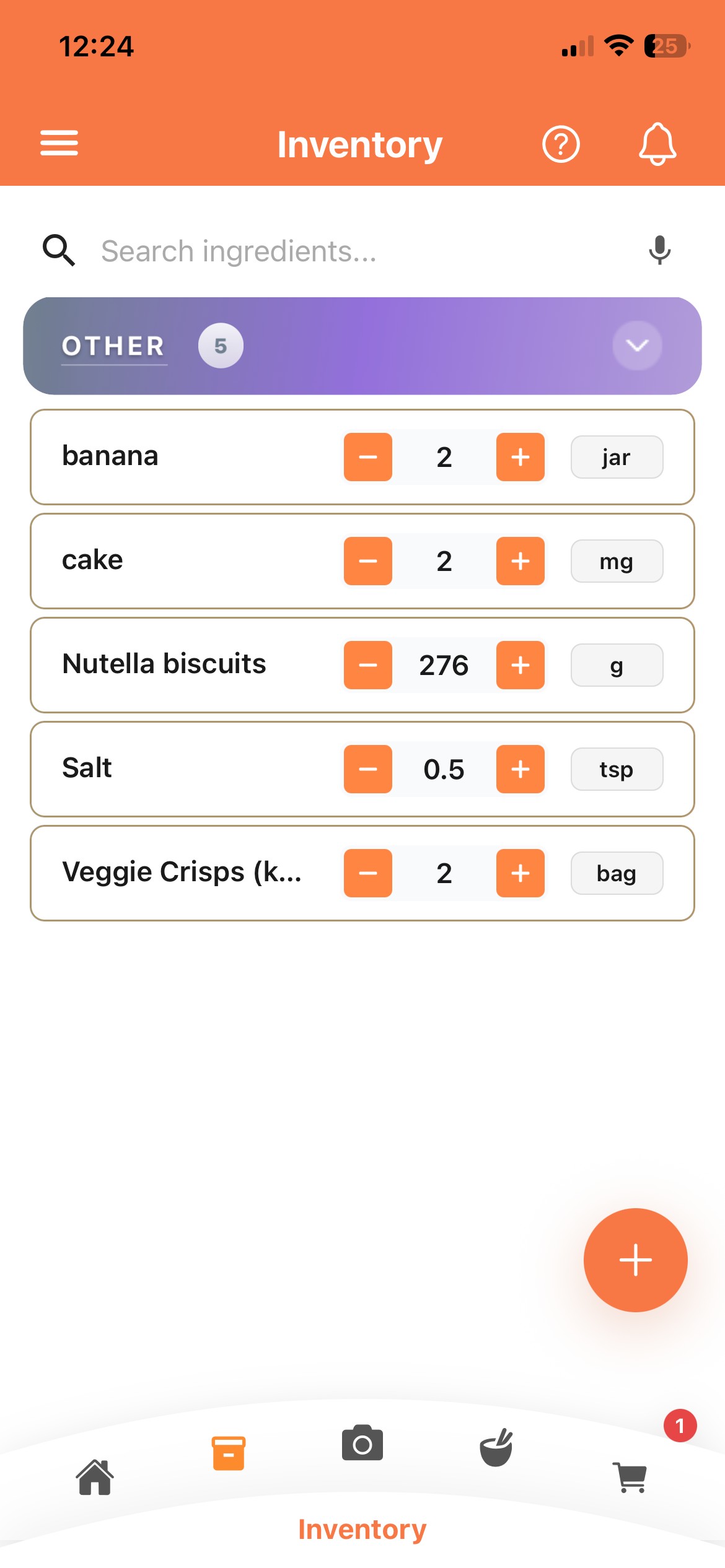
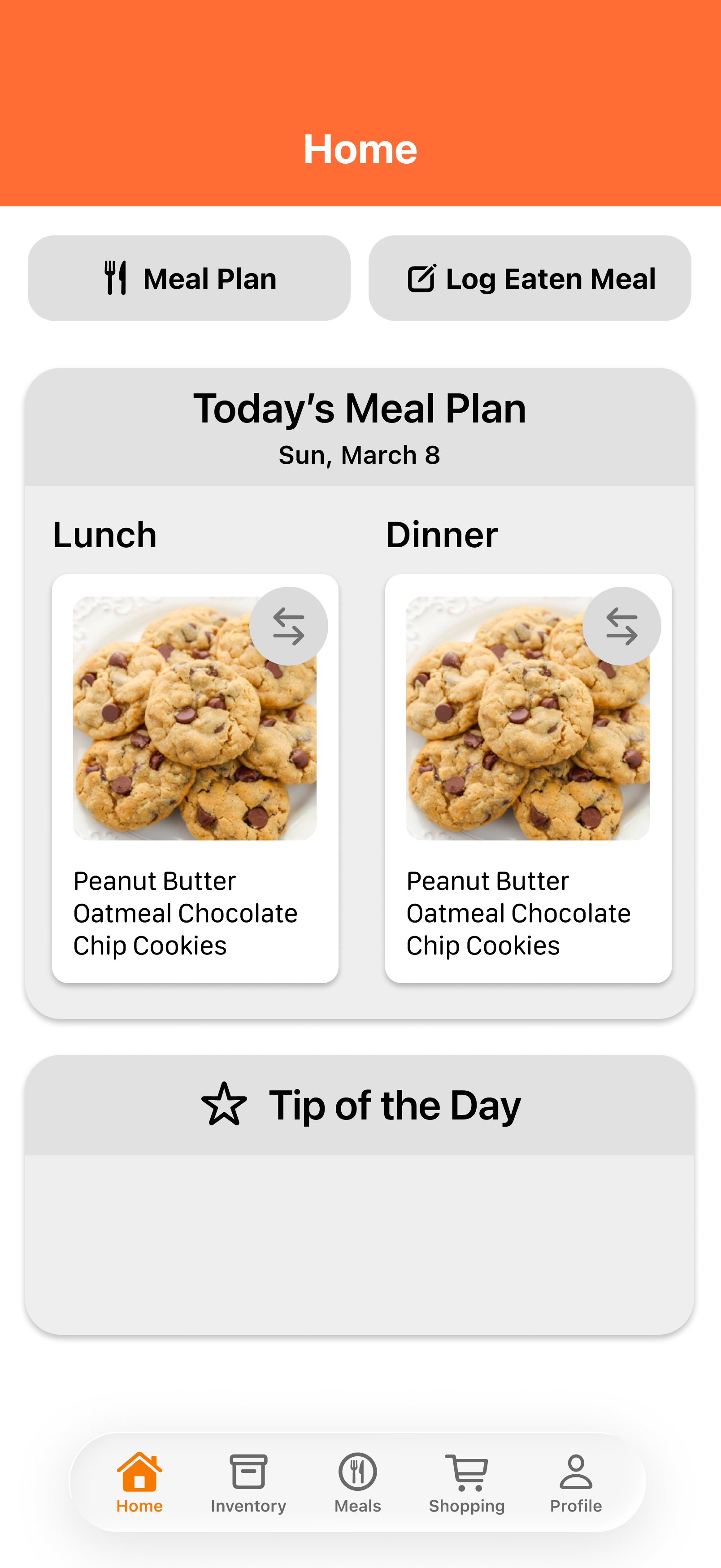
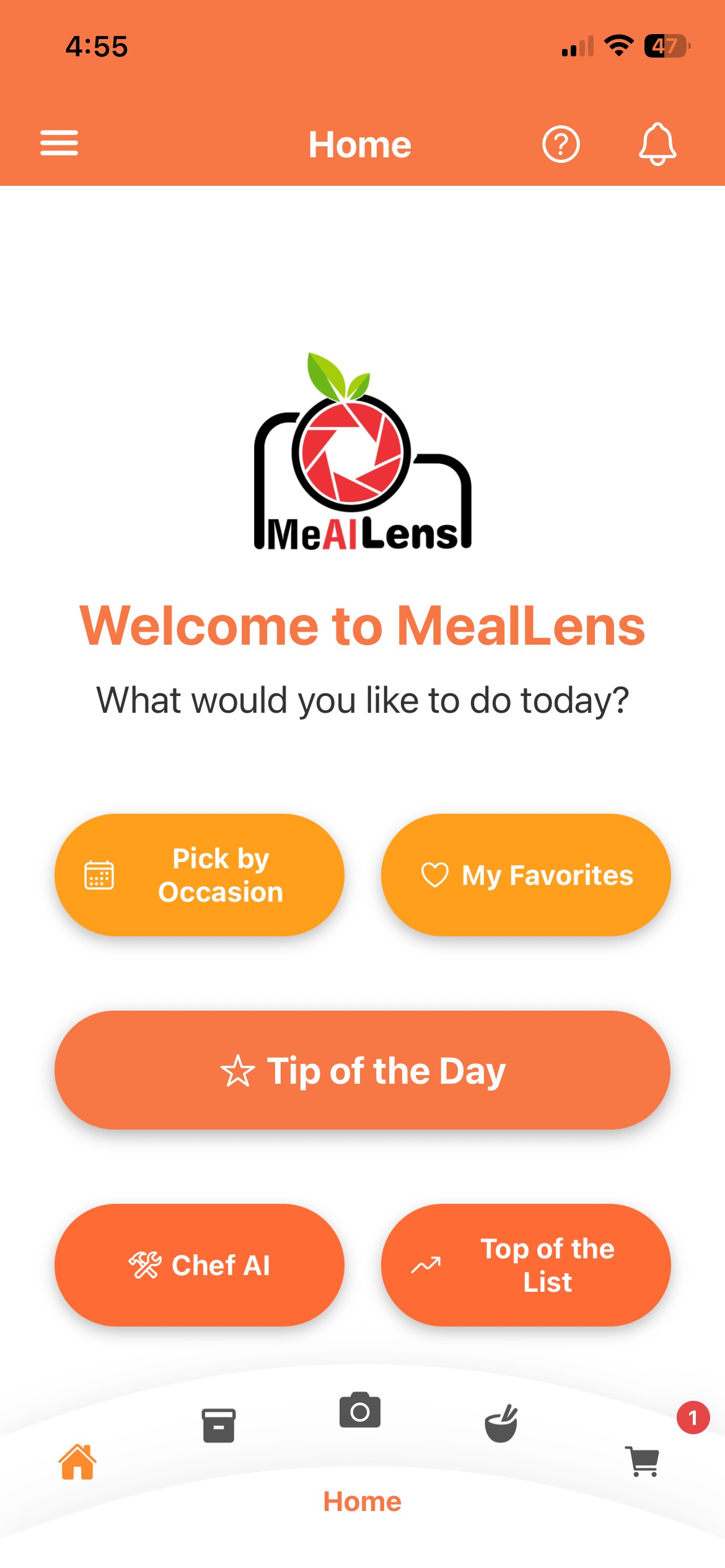
from this...

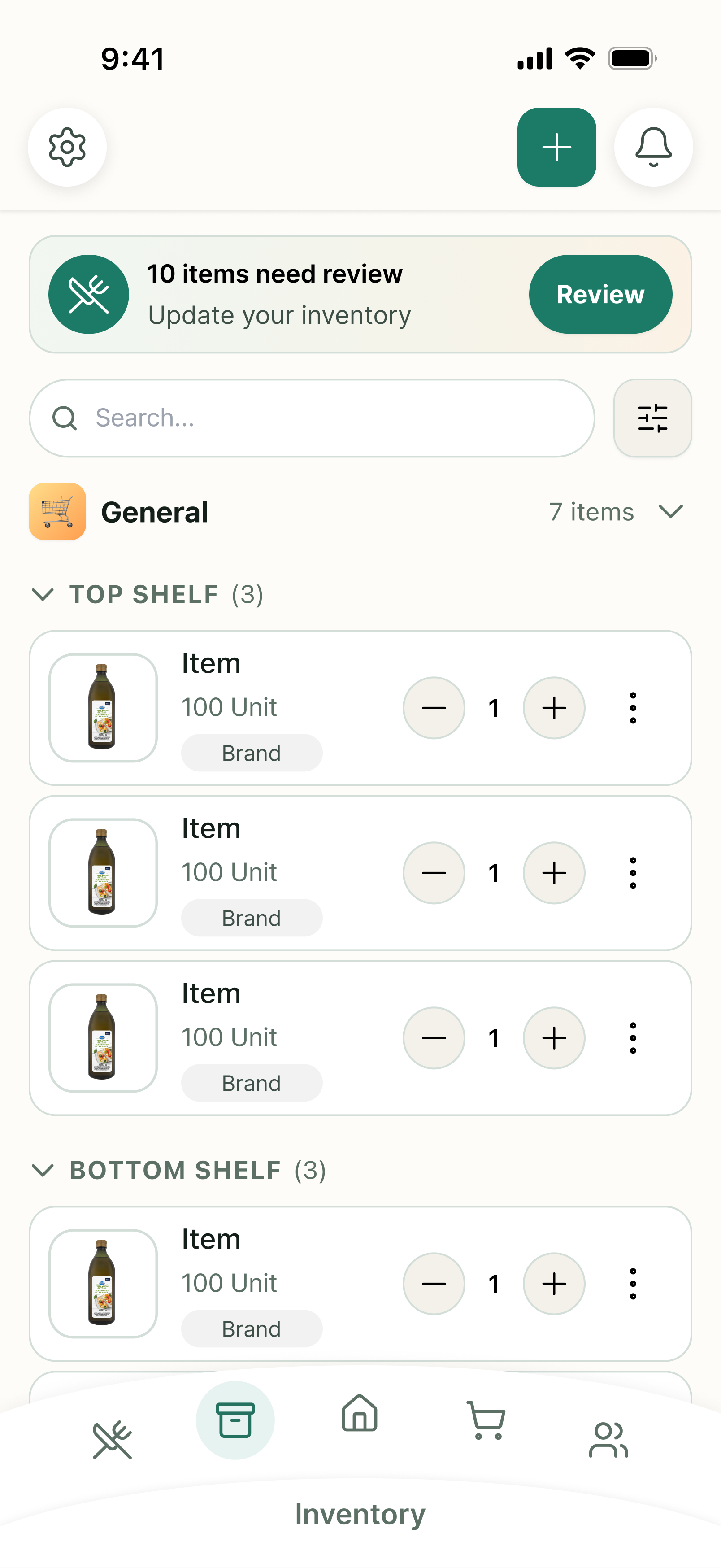
to this!

Gathering Insights
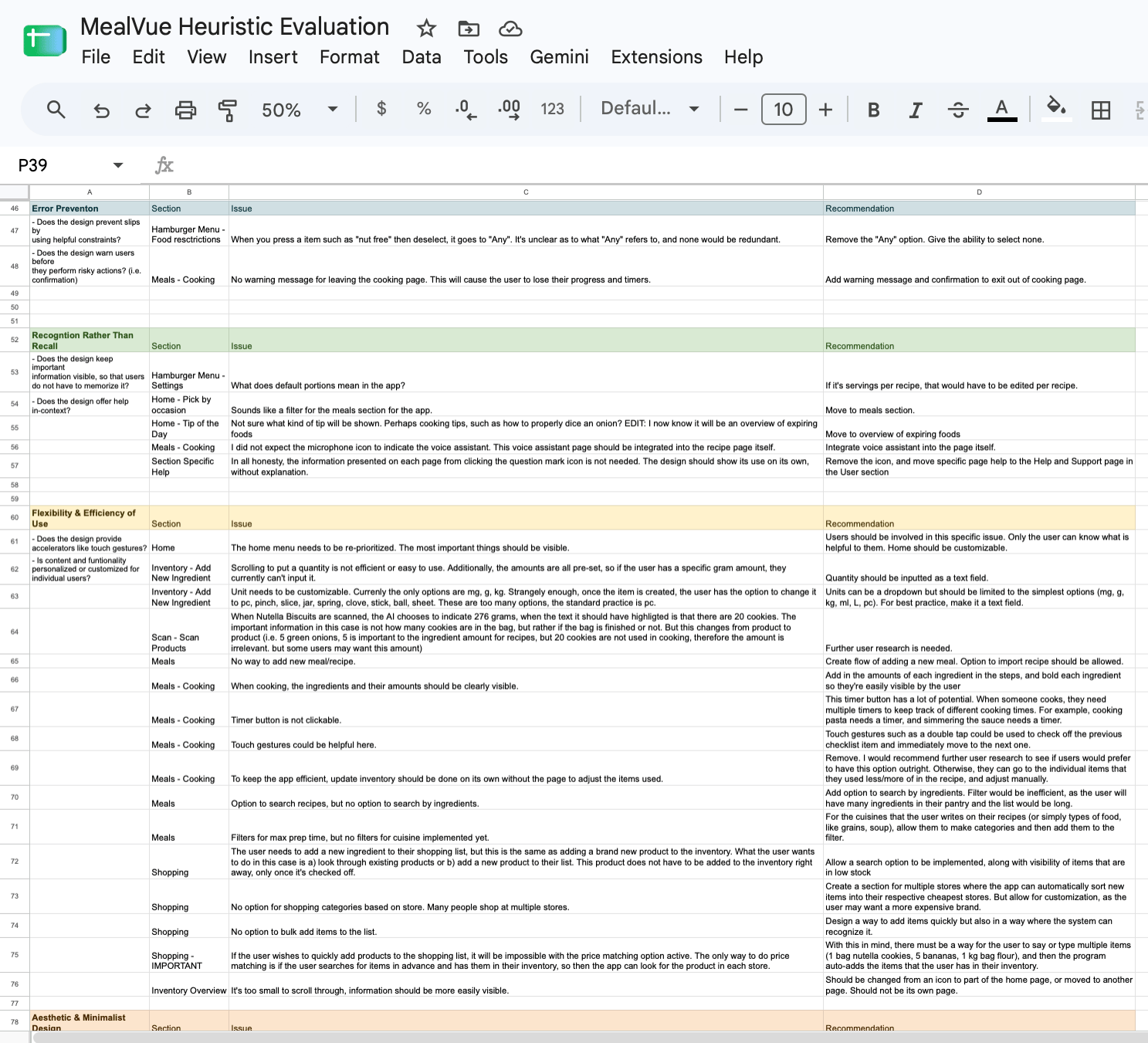
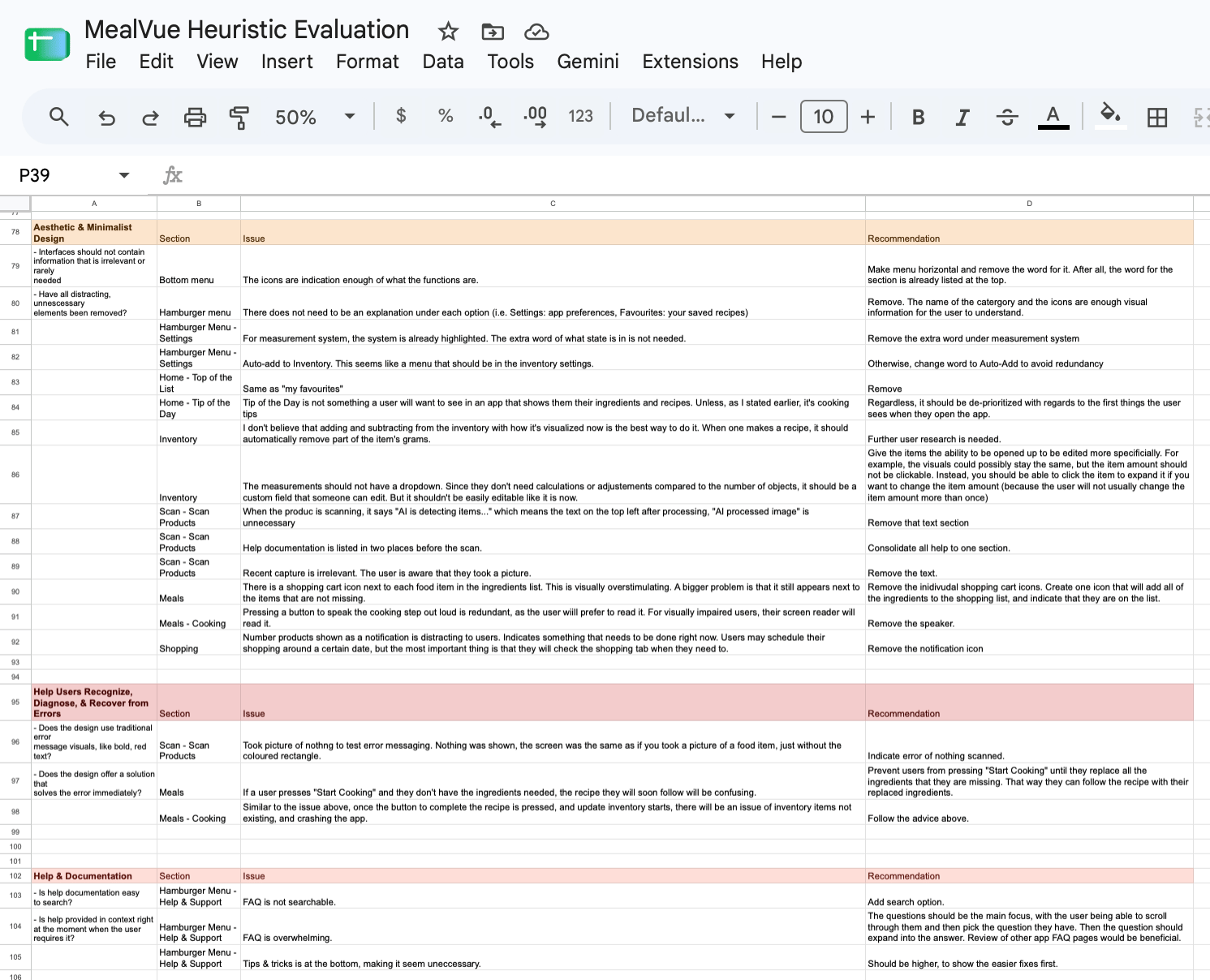
First, I conducted a heuristic evaluation of the entire MealVue app according to Neilson's heuristics.
I identified multiple usability and accessibility points of friction in Google Sheets, which I compiled into a detailed document organized by page section.
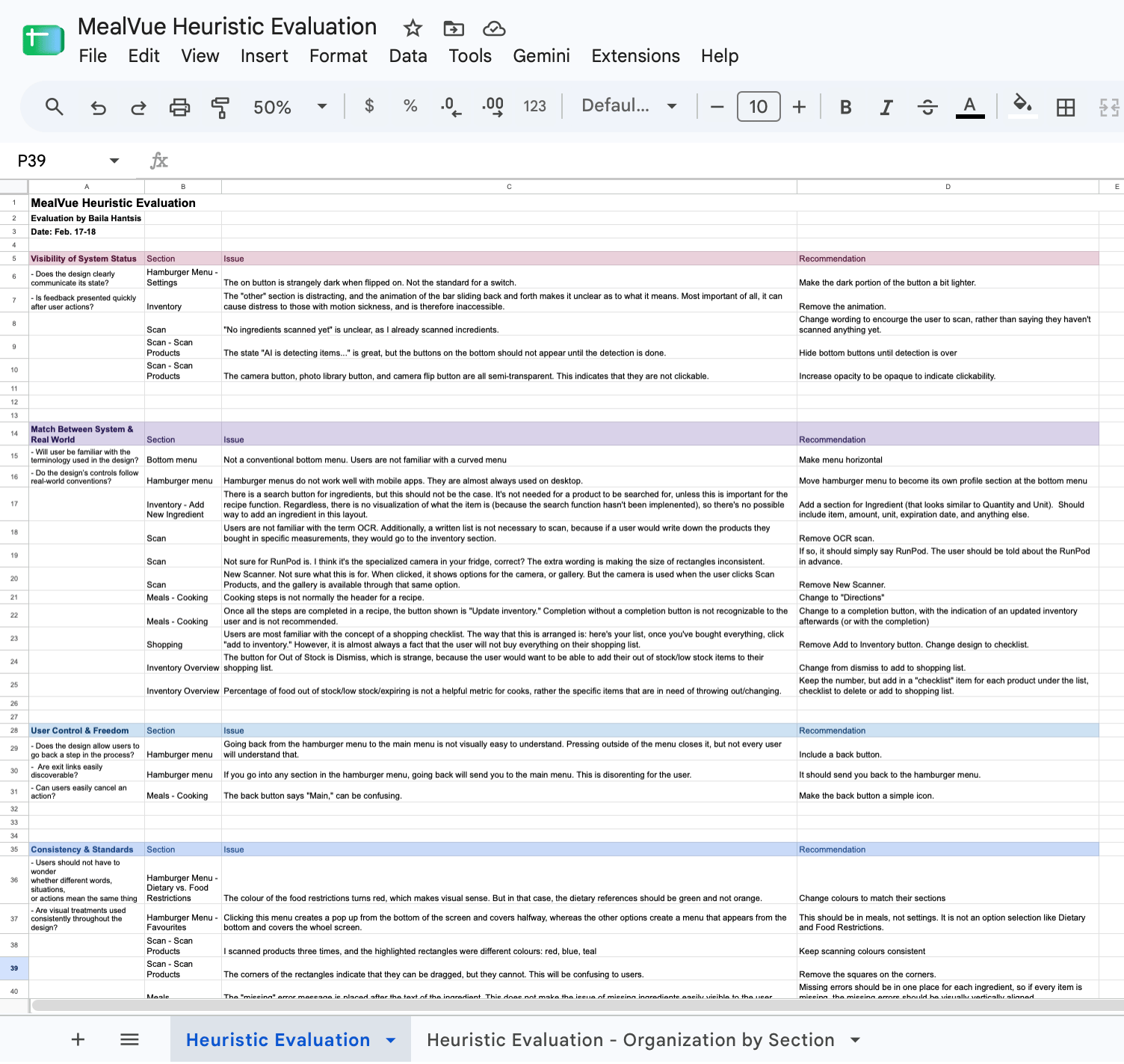
Notable Points of Friction
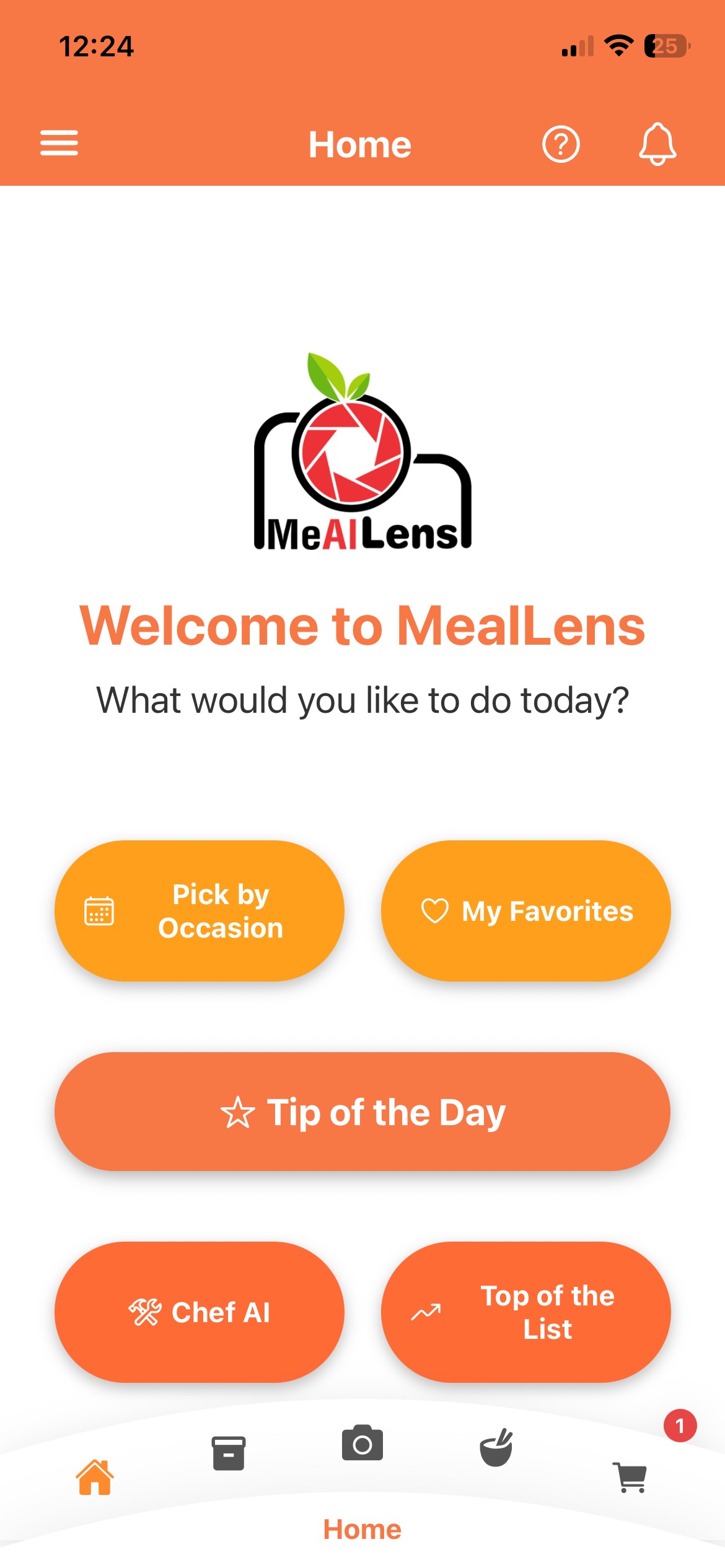
The initial interface suffered from accessibility violations, redundant visual hierarchy, and an overwhelming home and navigation structure.
Separated quantity details could cause user confusion, while undersized stepper buttons compromised touch accuracy.
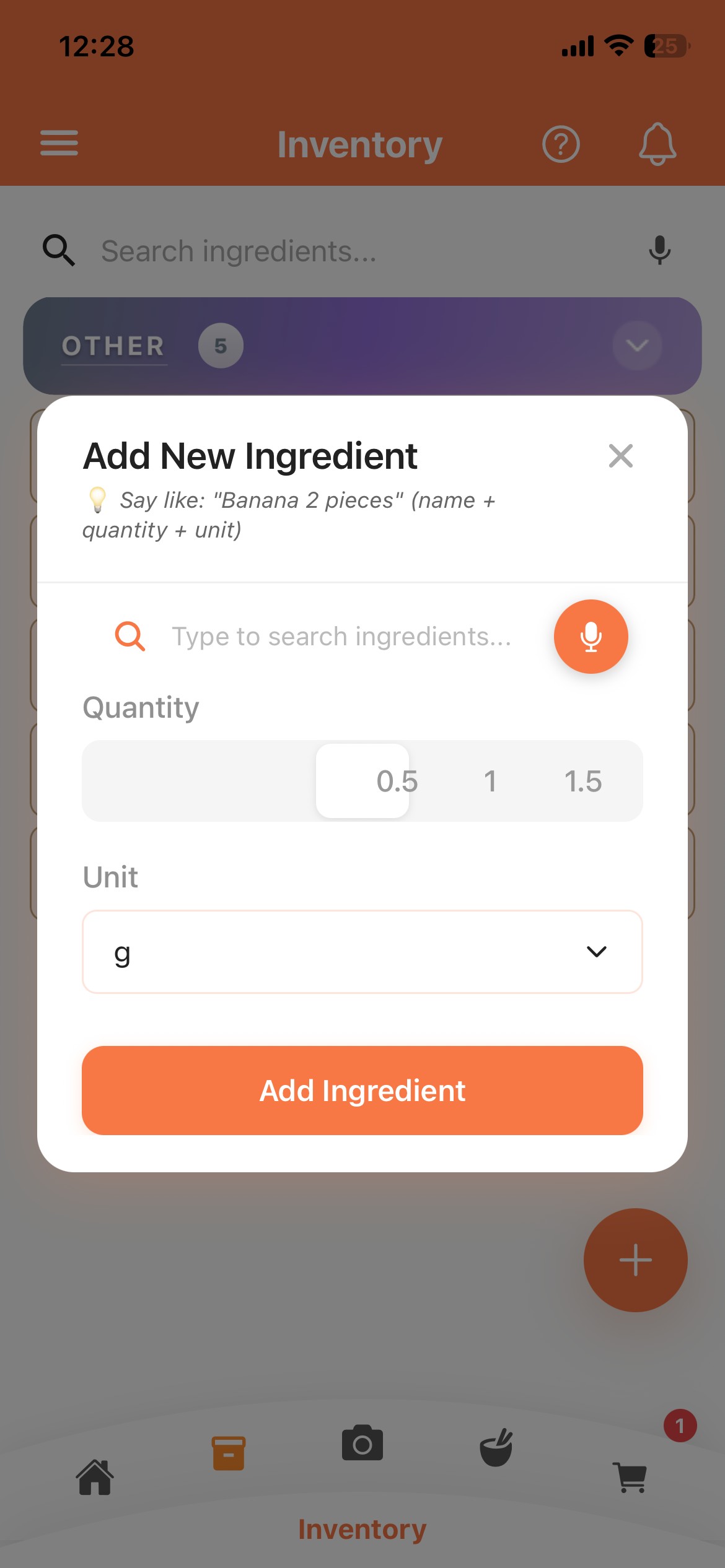
Logging items into inventory took unnecessary effort because users cannot make bulk updates or quickly adjust large item counts.
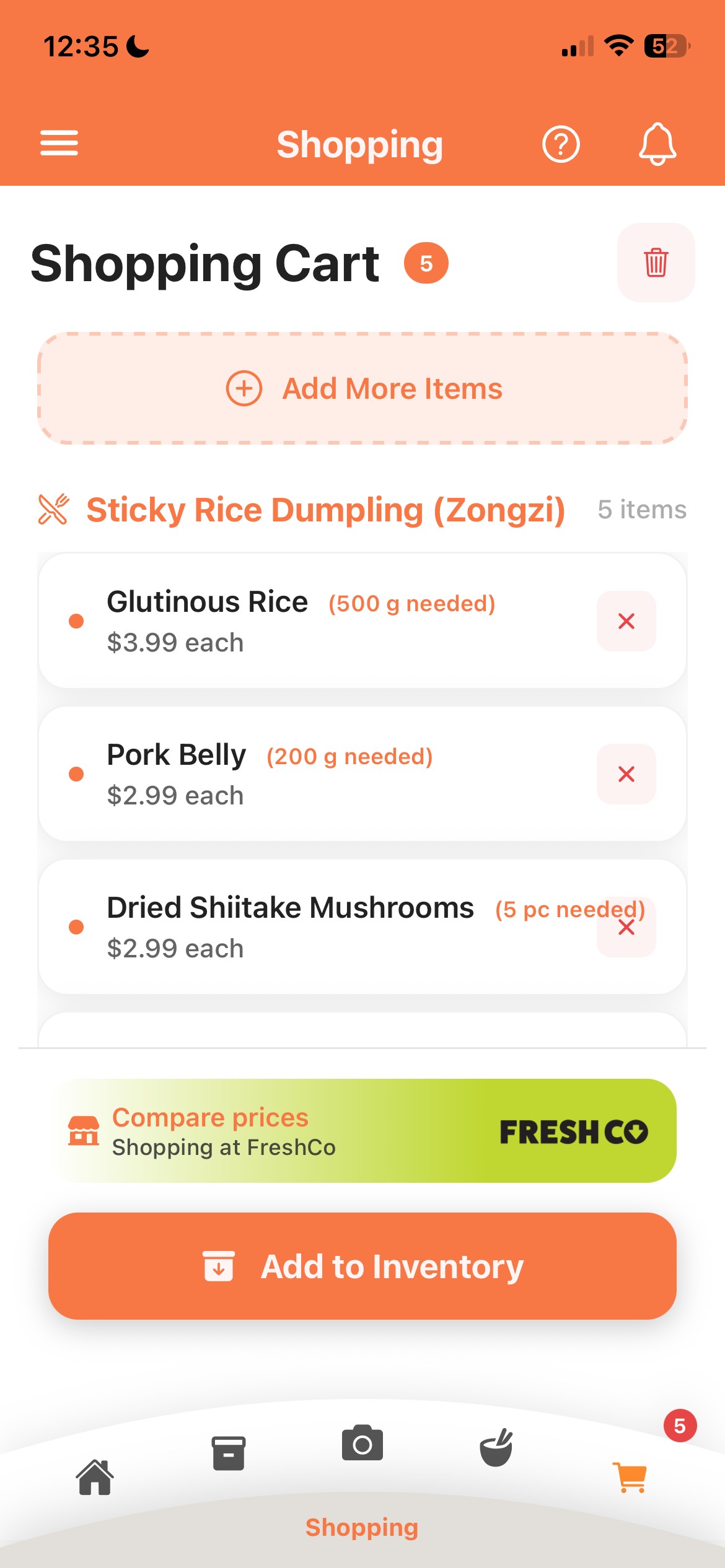
Shopping was inefficient due to poor cart usability and no way for users to check off items as they moved down the aisles.
Competitor Research
Inventory Management
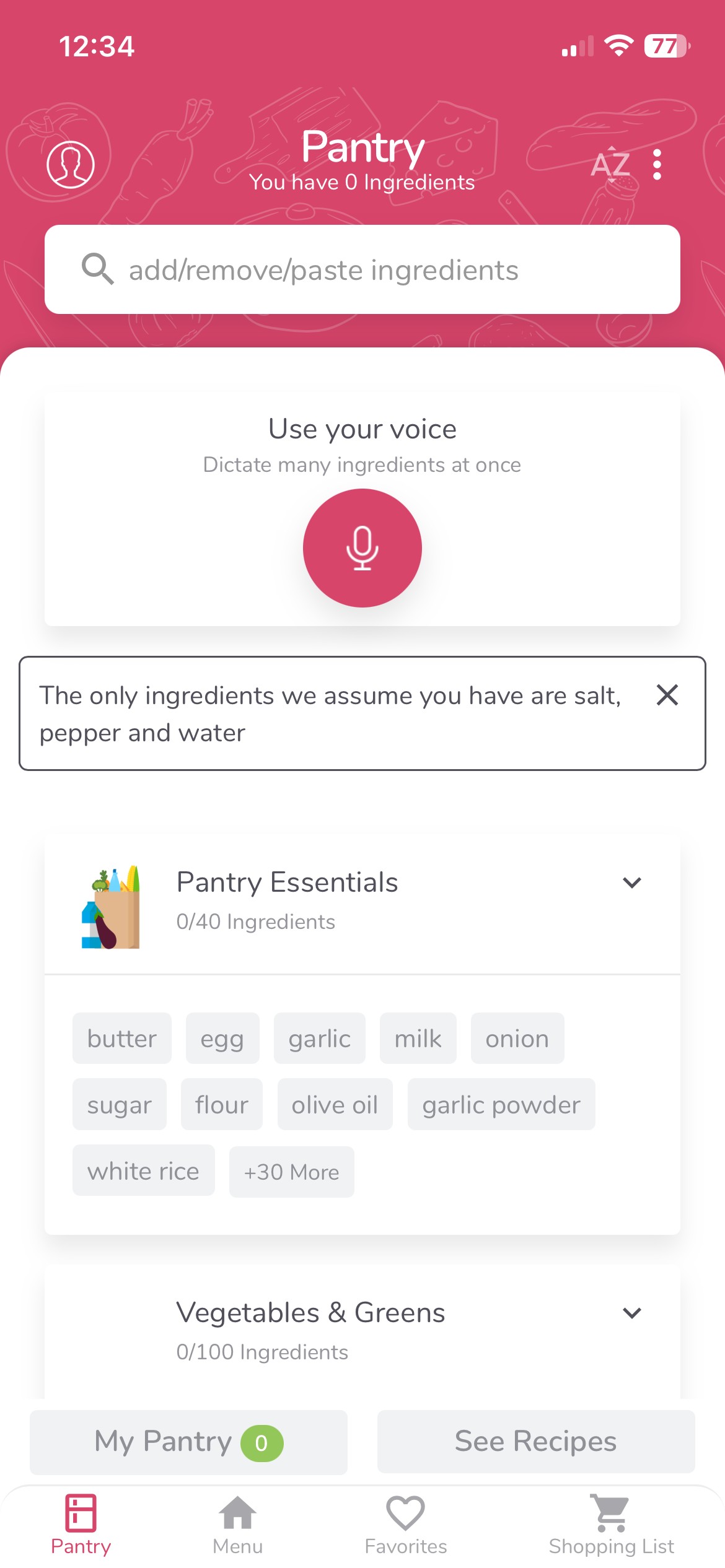
- Supercook: The UI is visually overwhelming and lists every common pantry item.
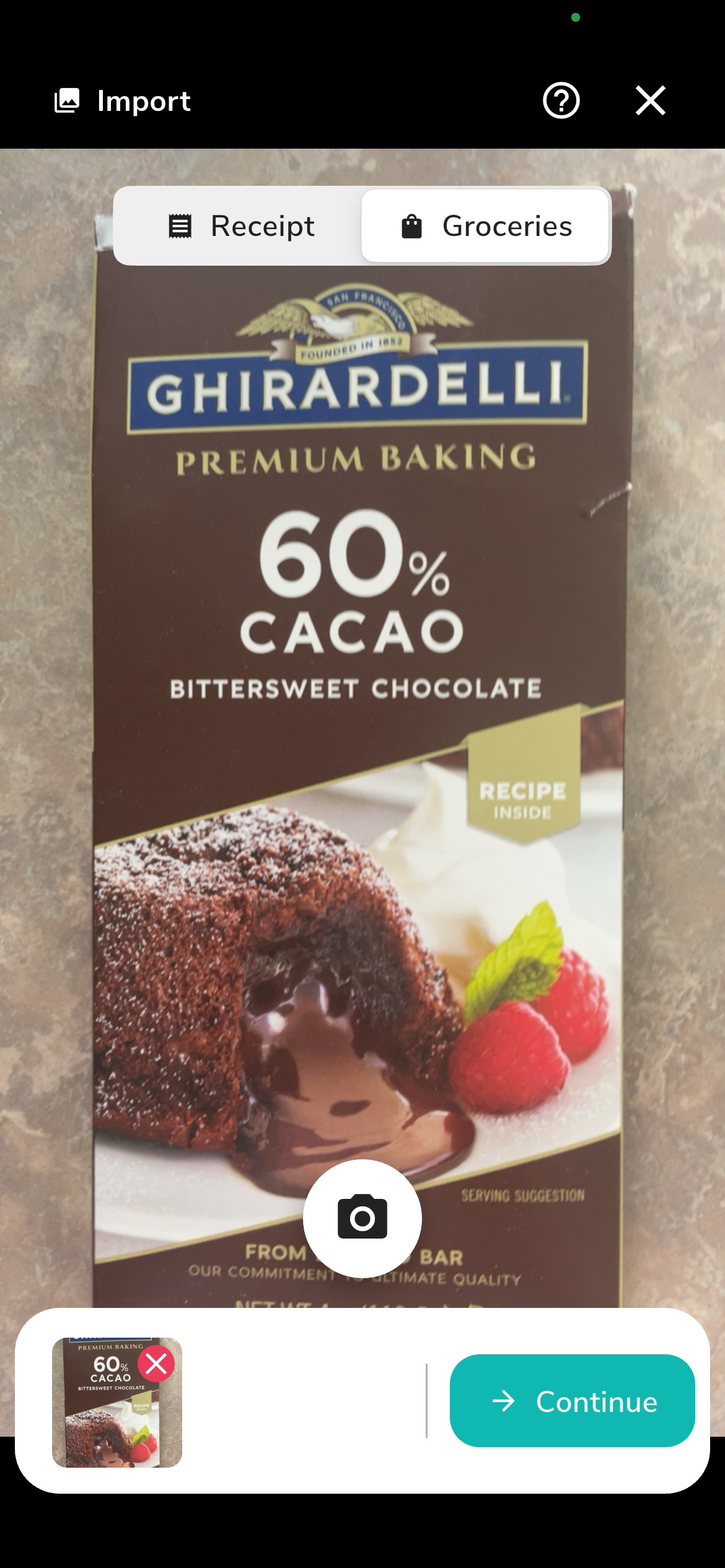
- NoWaste: Separate tabs for receipt and grocery, and ability to take multiple photos.
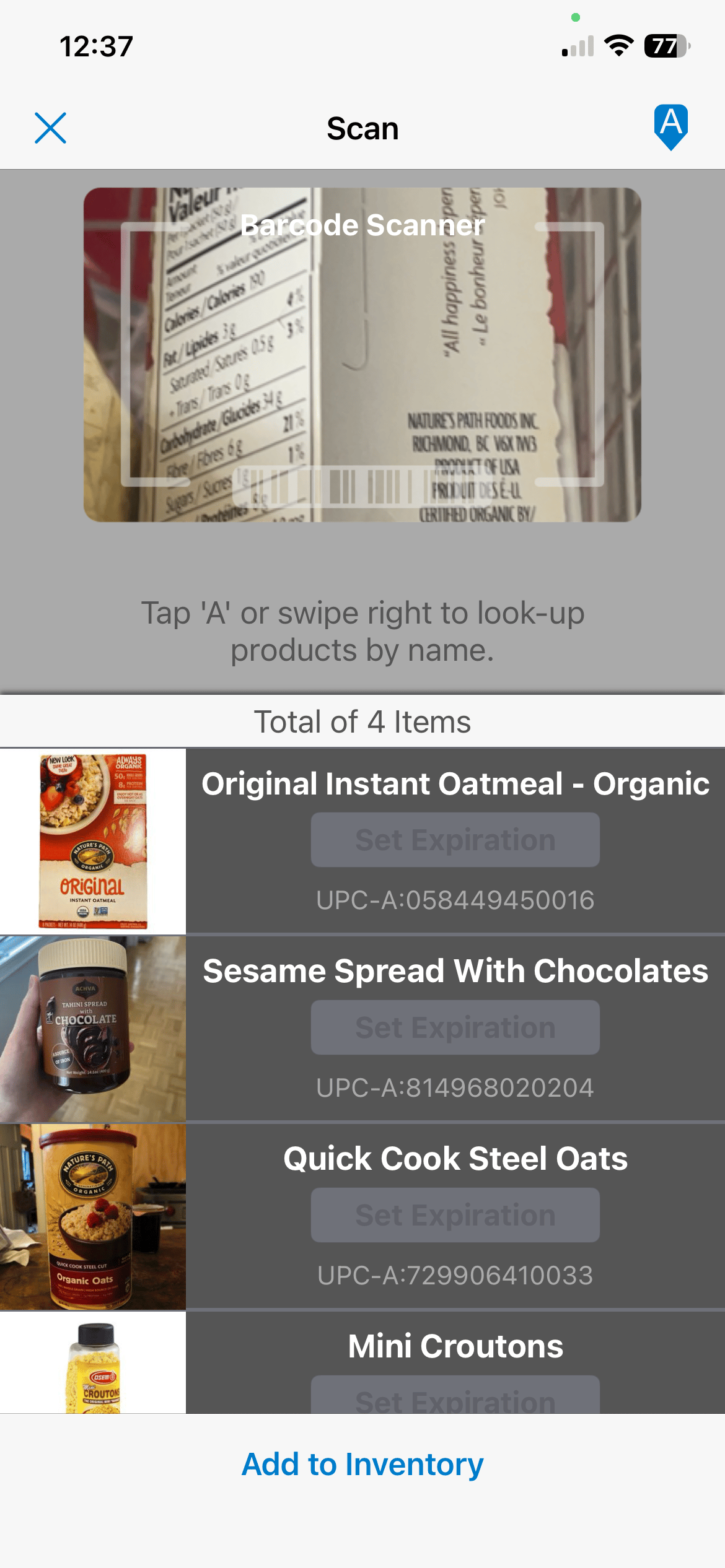
- PantryCheck: Barcode scanning is simple and intuitive.
Takeaways
The home screen should focus on what users currently own. Group items into clean, consolidated food categories and only fill the pantry with what the users add themselves.
When adding ingredients to the pantry, use a unified, intelligent camera scan for receipts and barcodes. Ensure that each item that has been scanned is visible to the user.

Grocery Lists
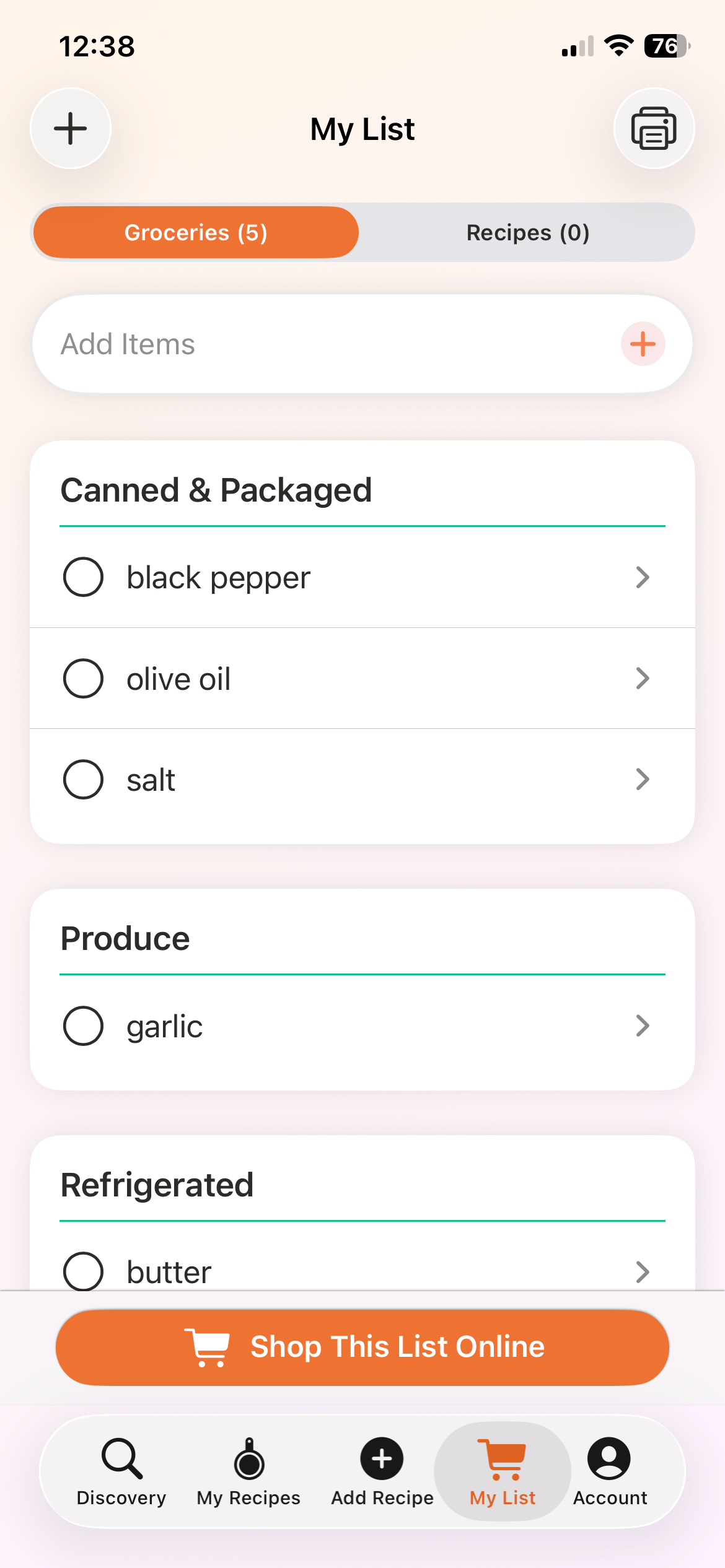
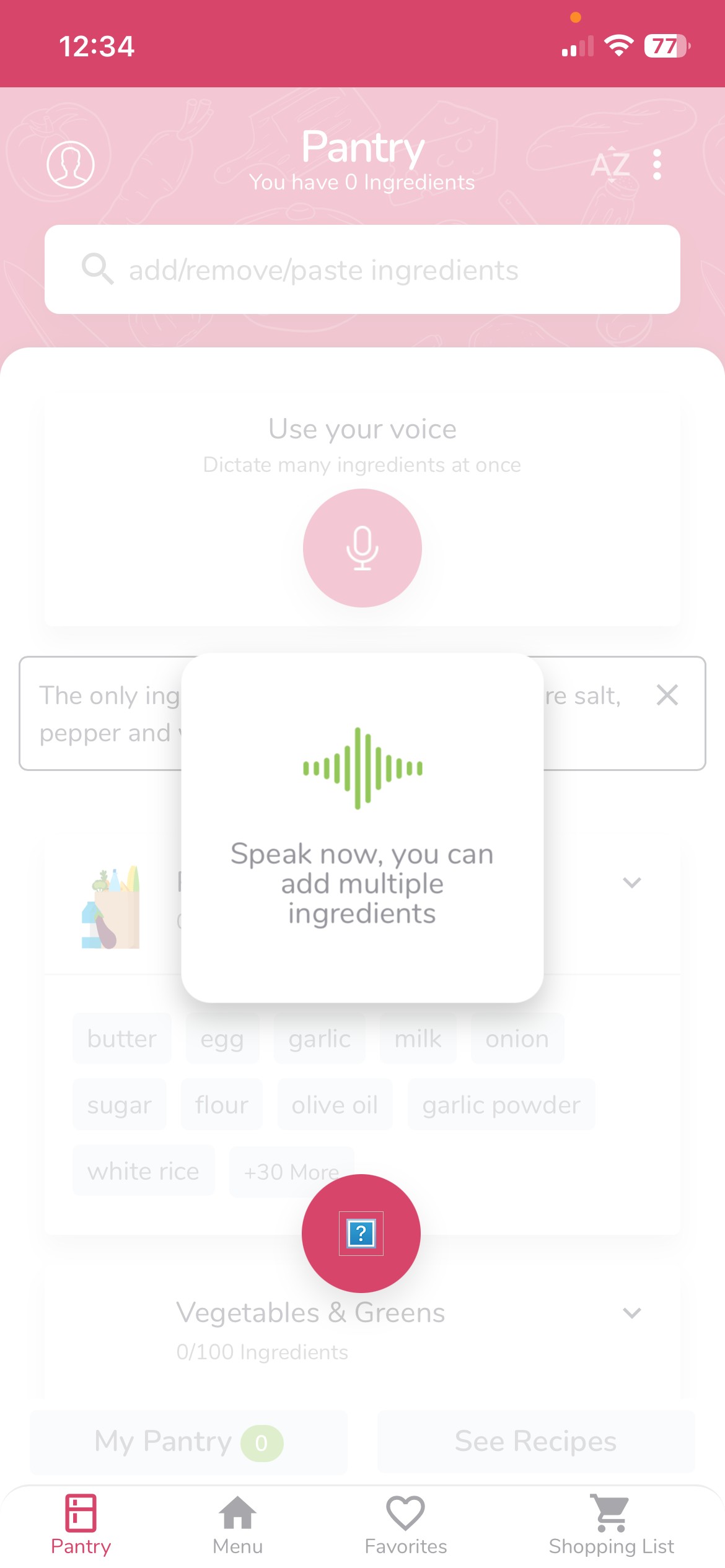
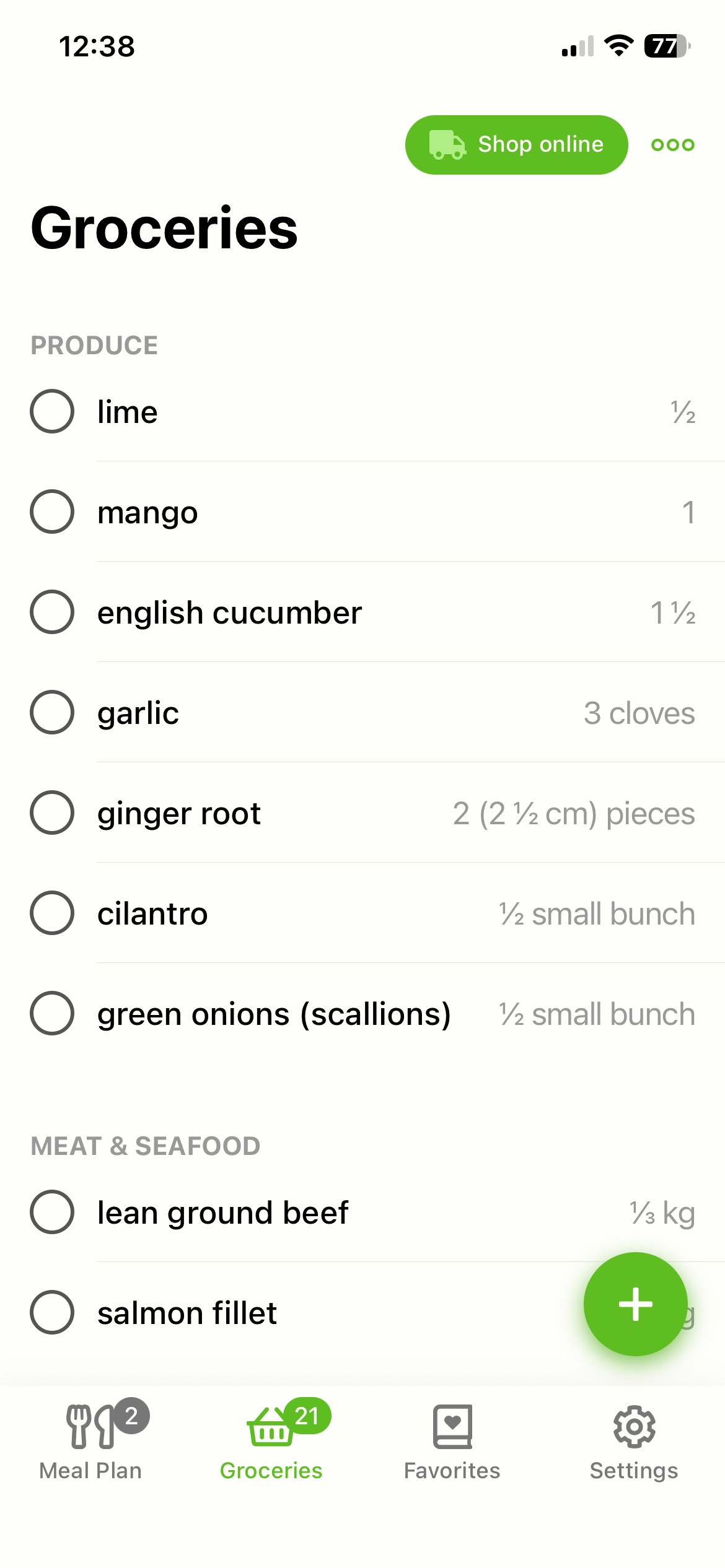
- Recipe Box: Grocery list is visually clean separating ingredients by aisle.
- Supercook: Its voice recognition is excellent for quickly adding items to the inventory and shopping list. However, checked items stay on the list until manually deleted.
- Mealime: Adding groceries is incredibly easy and supports unit-less entries. However, placing ingredient amounts on the right side of the ingredient name can cause confusion on how much to buy.
Takeaway: Keep the main action buttons out of the navigation bar to save space. Ensure quantities are left-aligned for easy reading, and allow checklist item recovery. Organize ingredients by aisle.
Recipes & Meal Planning
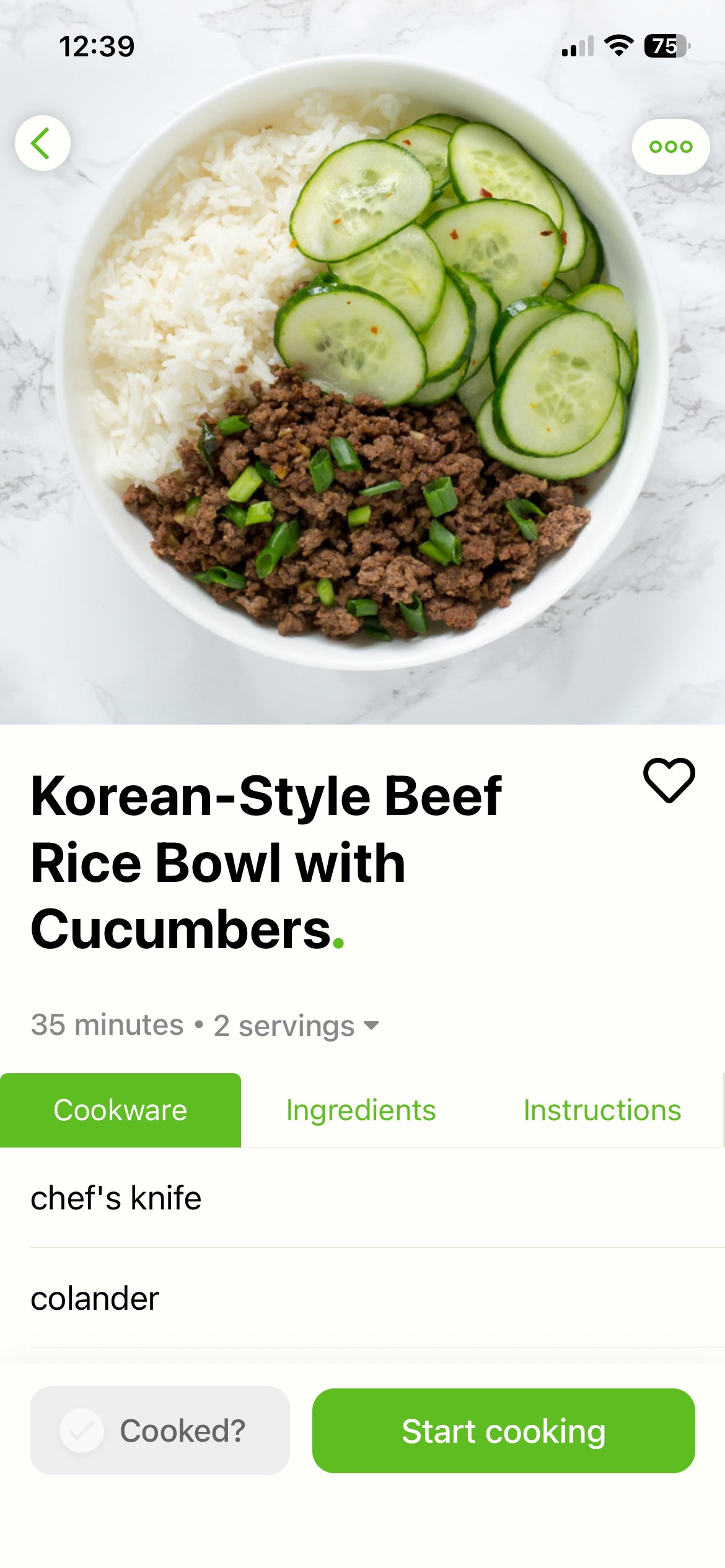
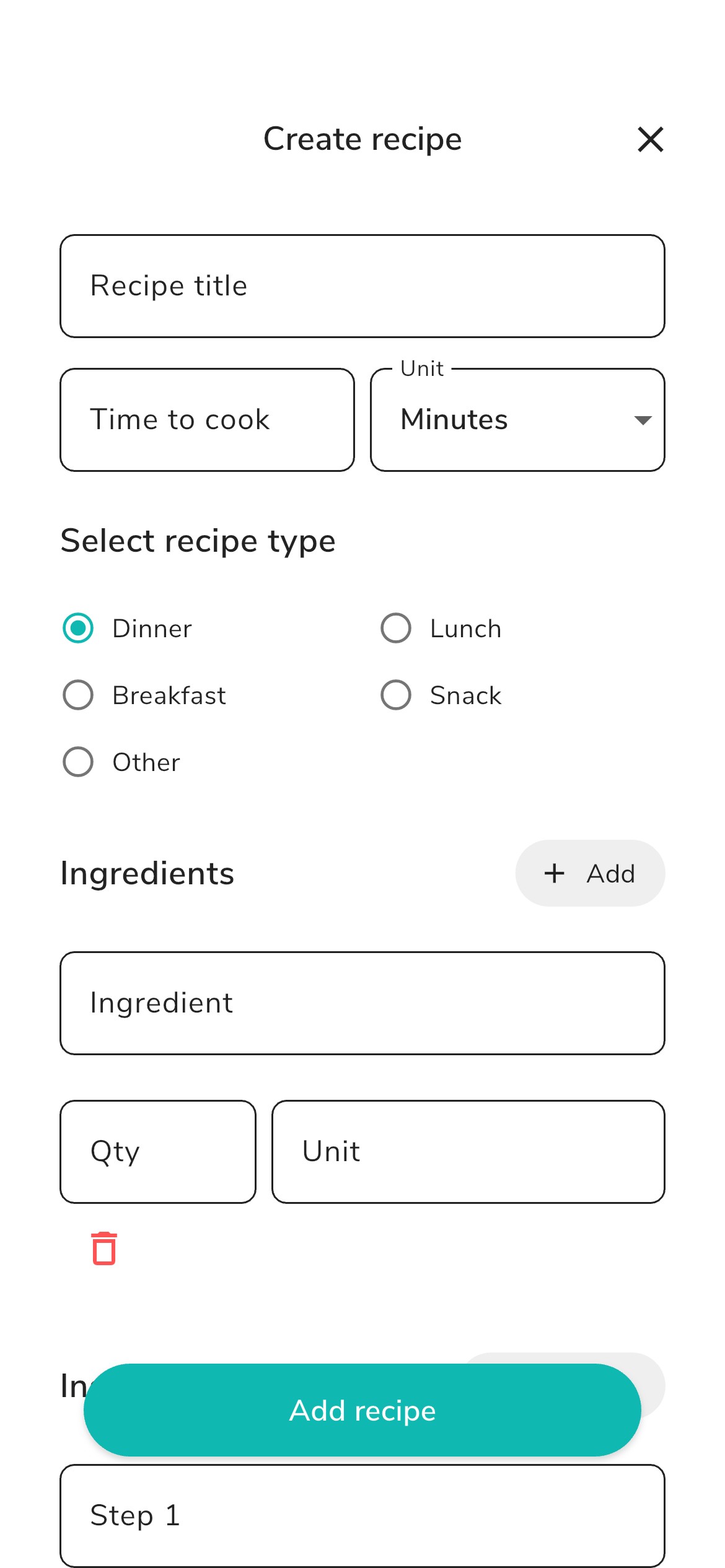
- Mealime: Including instructions in recipe tab is useful to see how labour intensive a recipe can be, or if the user wants a quick glance at the instructions before cooking. Recipe pictures being squares is eye-catching.
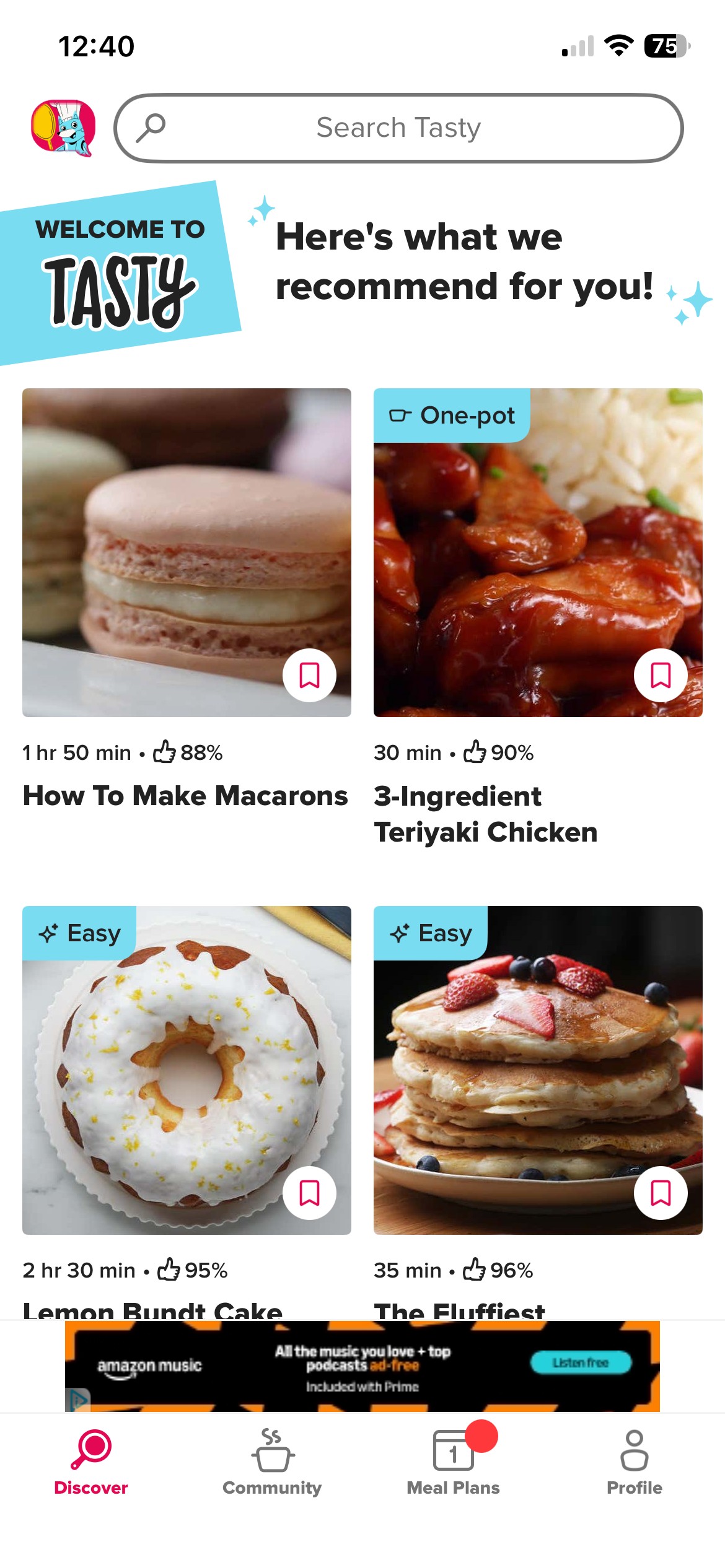
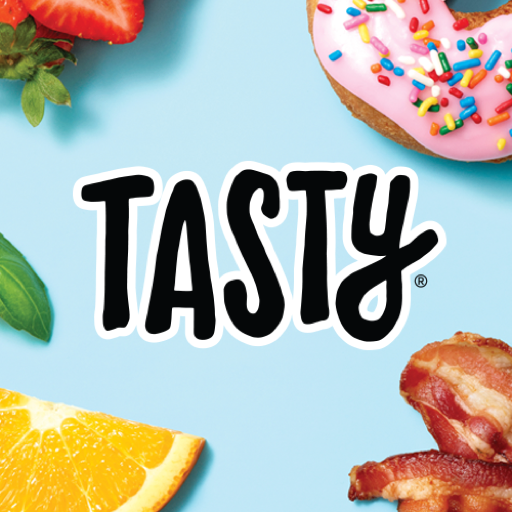
- Tasty: Clear recipe time-limit indicators are useful, but the top-left indicators are overwhelming.
- ReciMe: Meal Planning page is a bit overwhelming, and meal times do not have customization.
Takeaway: Make recipe cards square and easy to scan. Focus on customization. For recipes, integrate the use of external links, images, and pasted text. Meal planning should be quick and intuitive.
Design Iterations
After developing the initial wireframes, I worked with my team to iterate on key user flows. I built an accessible UI library that standardized design patterns across the application, accelerating future product development.
In this design review, three design processes will be shown.
Namely, Home, Inventory, and Shopping.
AI Integration
After establishing initial wireframes, I leveraged Base44 to accelerate the second iteration of the redesign, quickly mapping out features across all user flows. Once this base was established, I critiqued, refined, and expanded upon the generated layout to create the final designs shown above.
- Rapid Prototyping: Used AI to quickly translate initial concepts into a fully scaffolded, feature-complete app framework.
- Strategic Refinement: Evaluated the AI output to pinpoint UX gaps, inconsistent UI patterns, and accessibility issues.
- Design Expansion: Built upon the baseline by polishing interaction models, improving component hierarchy, and expanding feature capabilities for the final solution.

Home Page
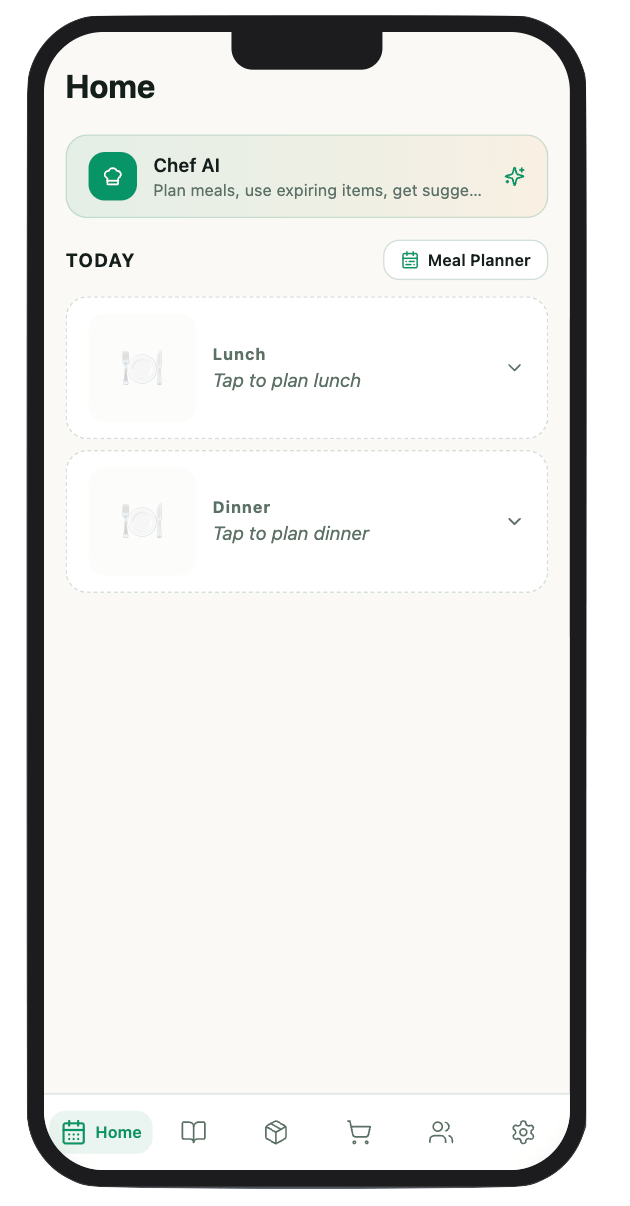
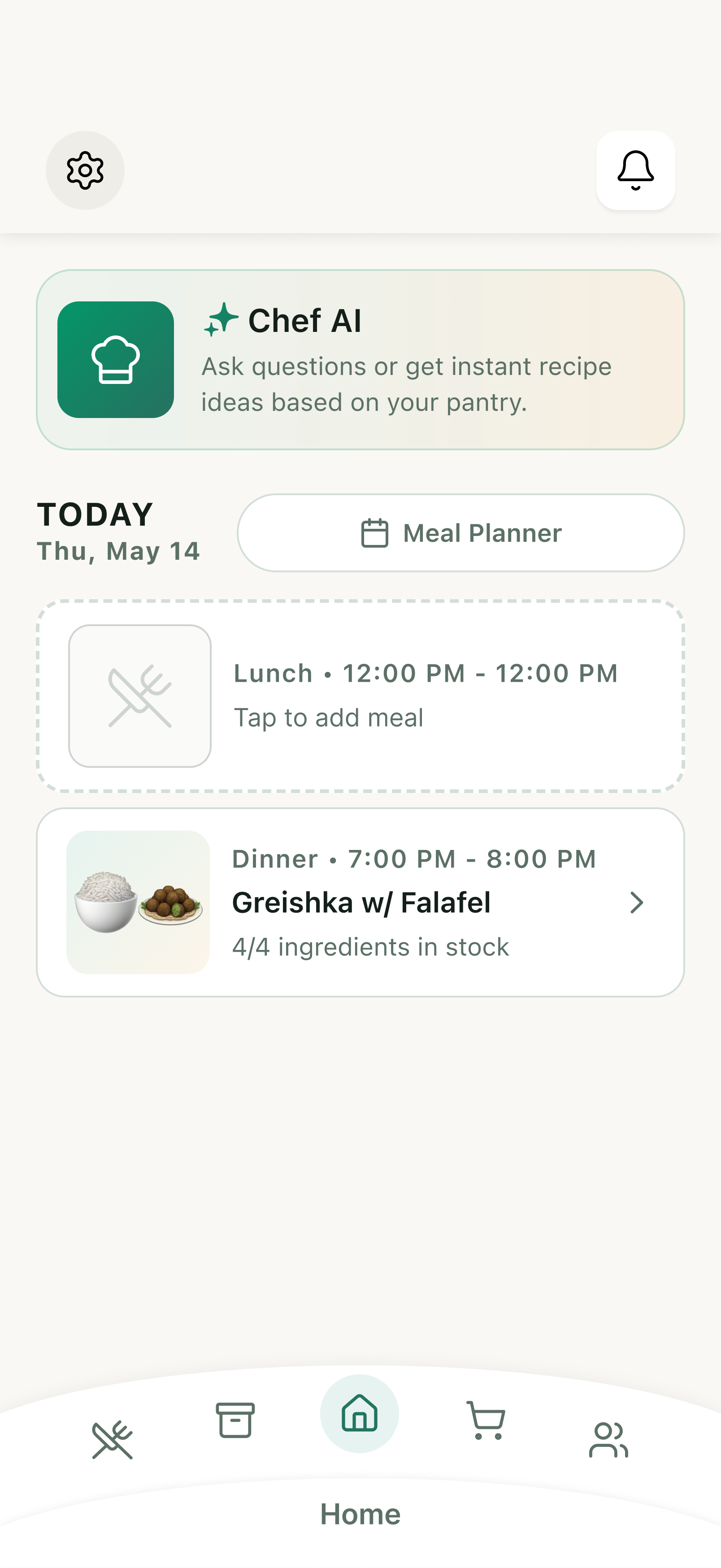
Large recipe photography limited viewable content to just two meals at a time, preventing users from tracking complete daily plans across breakfast, lunch, dinner, and snacks.
Key Design Changes
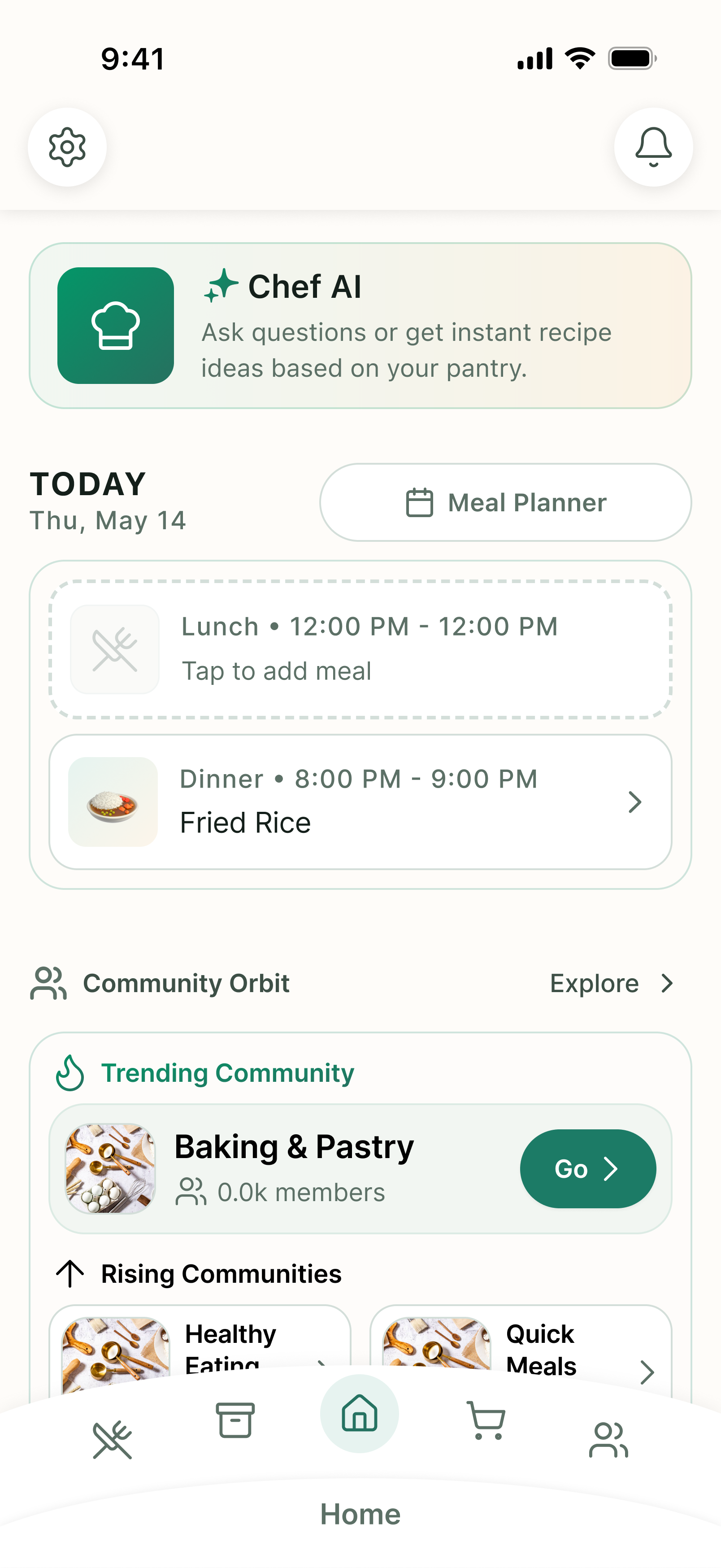
- Clearer Layout: Redesigned the main screen to focus on key tasks: viewing upcoming meals, checking recipes, and marking items as eaten.
- More Meals in View: Reduced photo sizes so users can see their entire day of meals at a glance without scrolling.
- Community Integration: Added a link to the community to the main page as requested by the product owner.



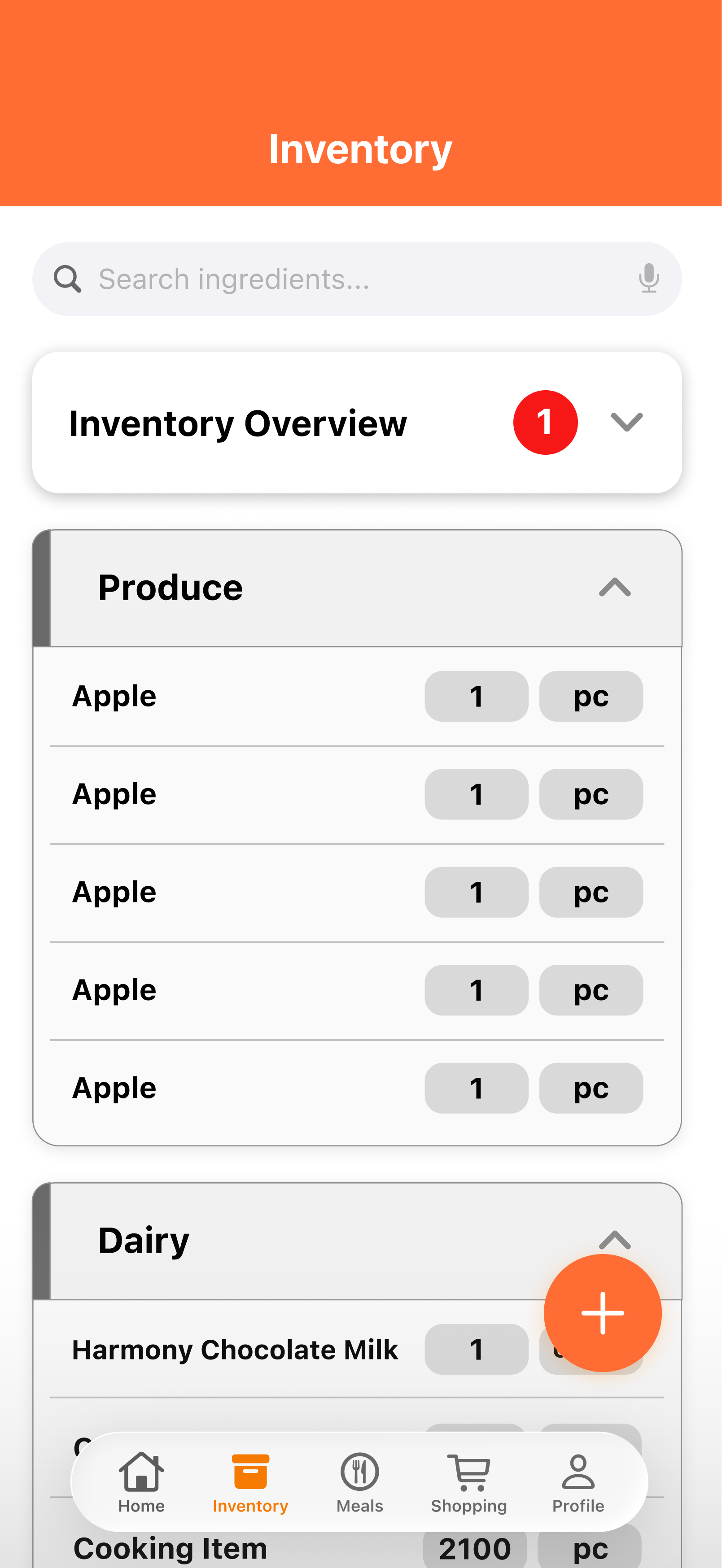
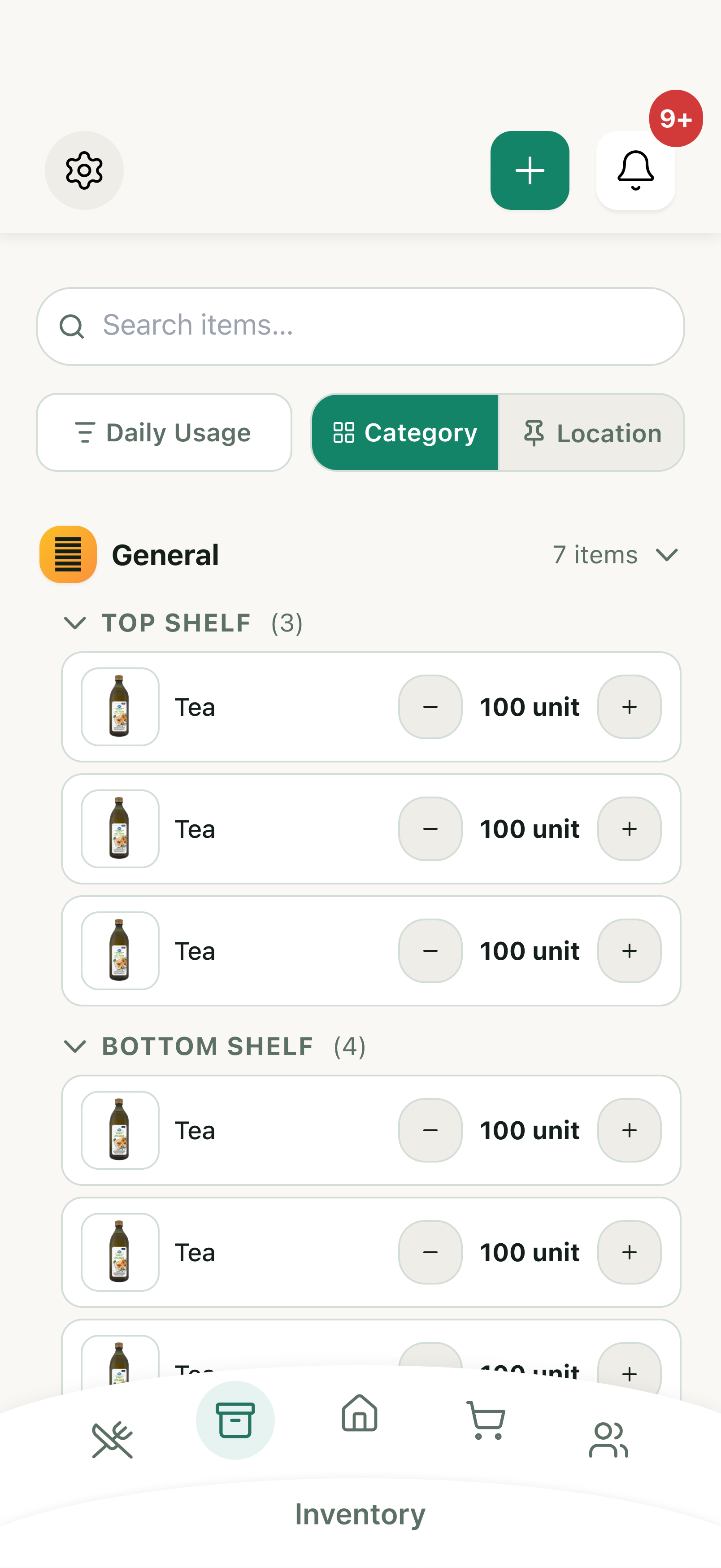
Inventory Page
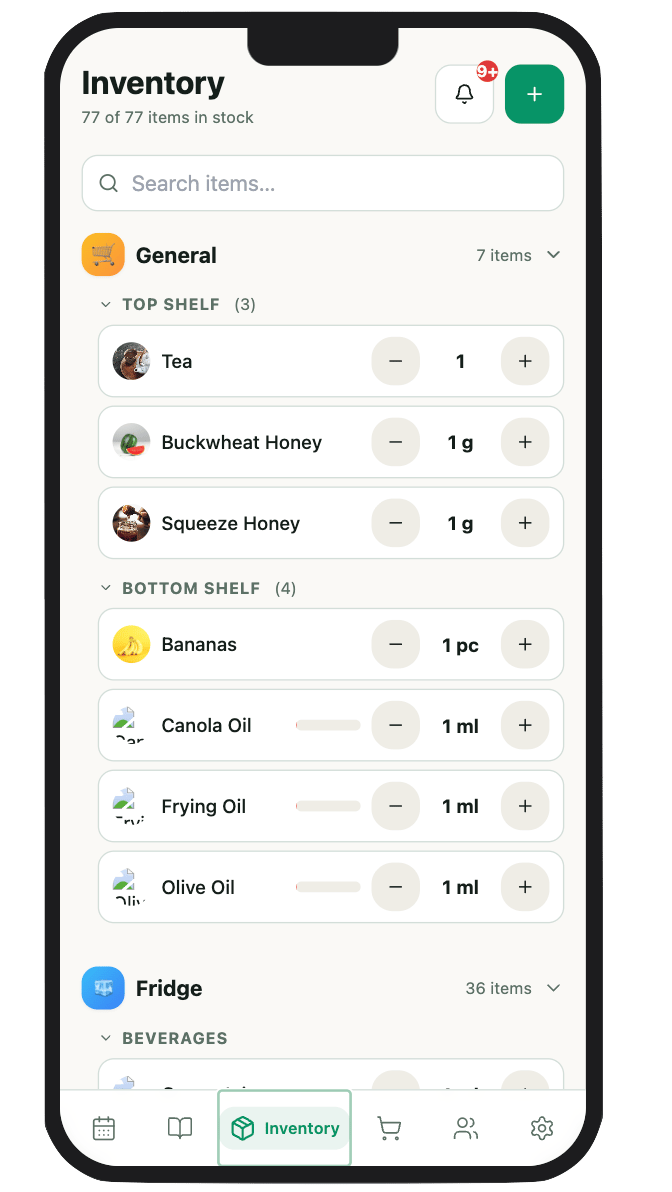
The inventory system now provides seamless, real-time stock tracking with automated out-of-stock alerts that allow users to push missing ingredients directly to their shopping list in a single tap.
Key Design Changes
To support different physical and mental contexts, I designed two distinct organizational views:
- By Category (Produce, Dairy, Pantry): Optimized for quick recipe planning and item searching.
- By Location (Cabinets, Countertops, Shelves): Designed to streamline physical kitchen audits and make putting away groceries faster after a shopping trip.
As the categorgizaiton



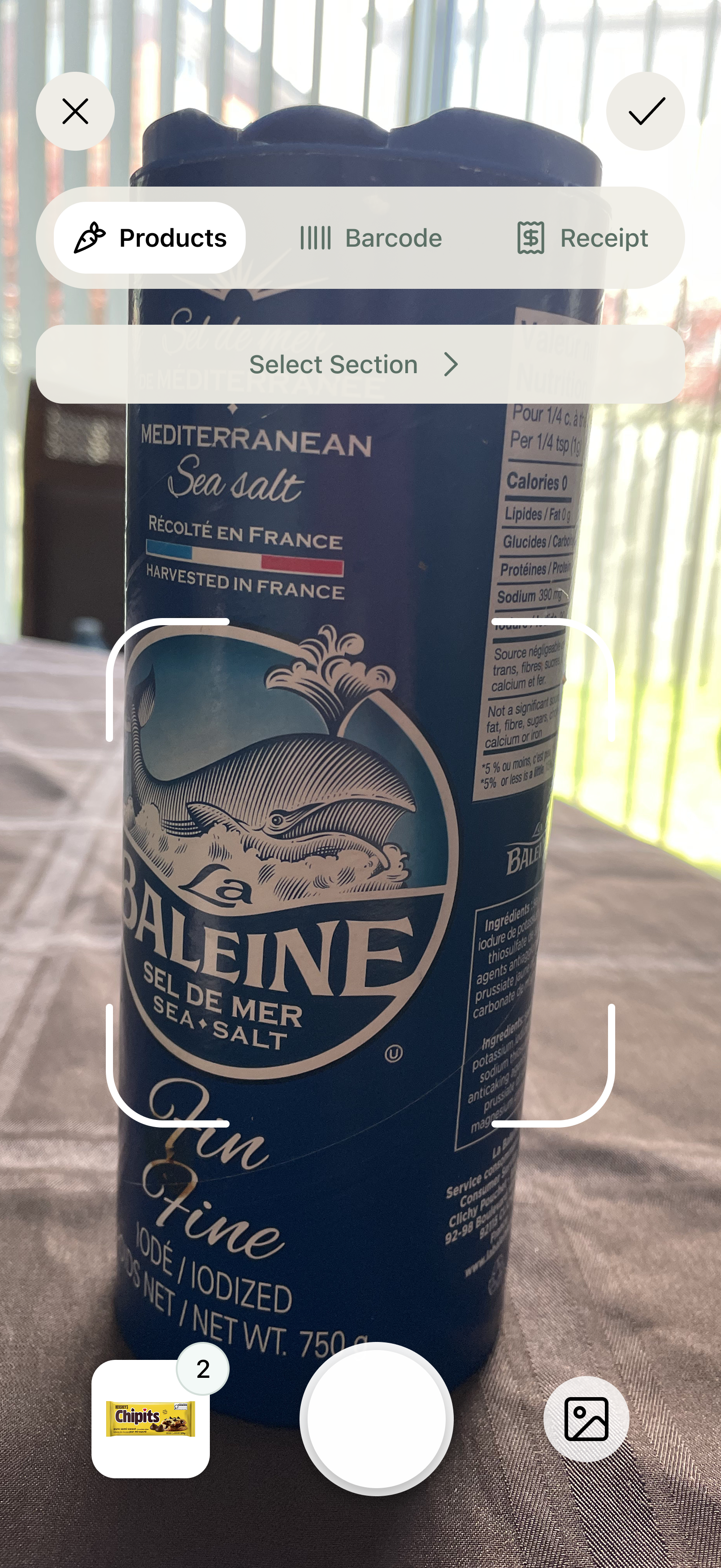
Adding to Inventory
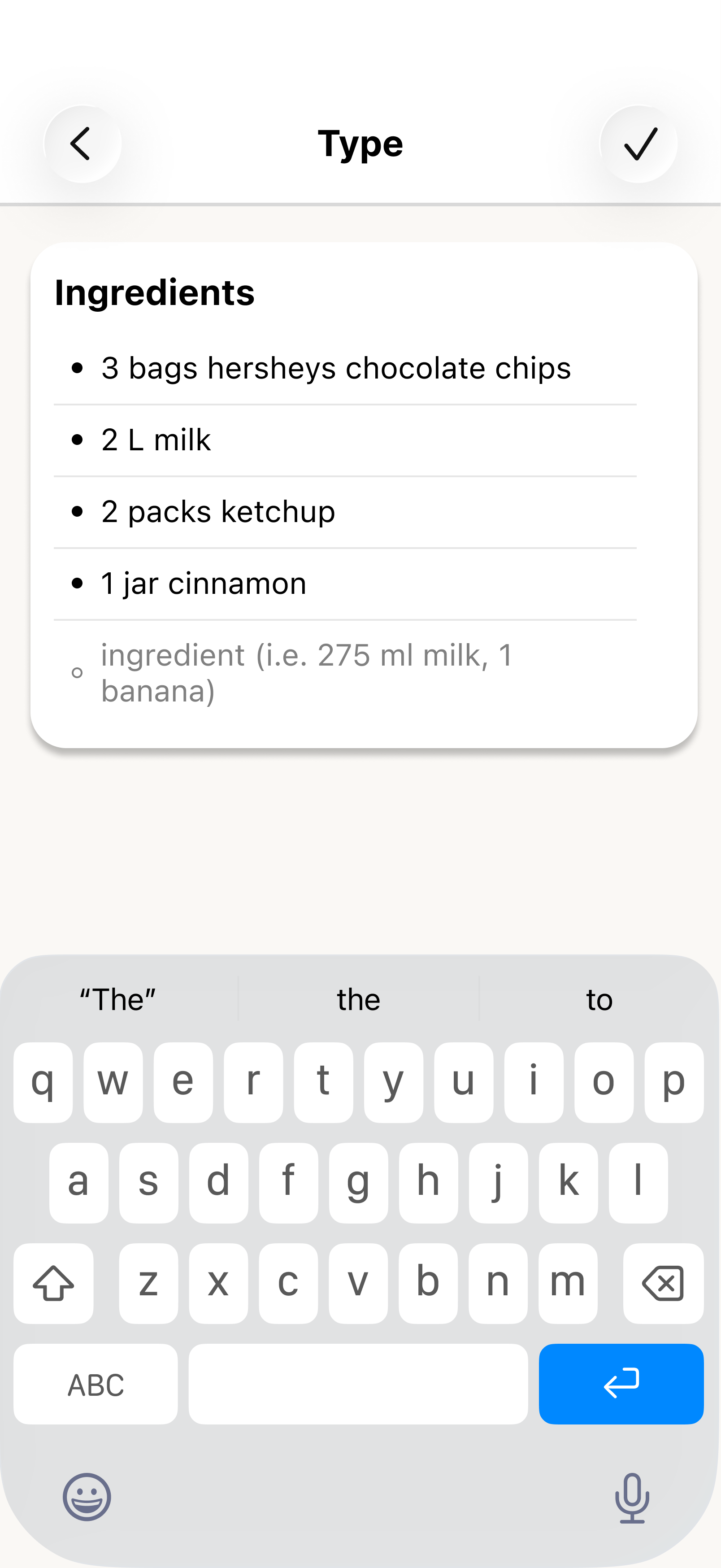
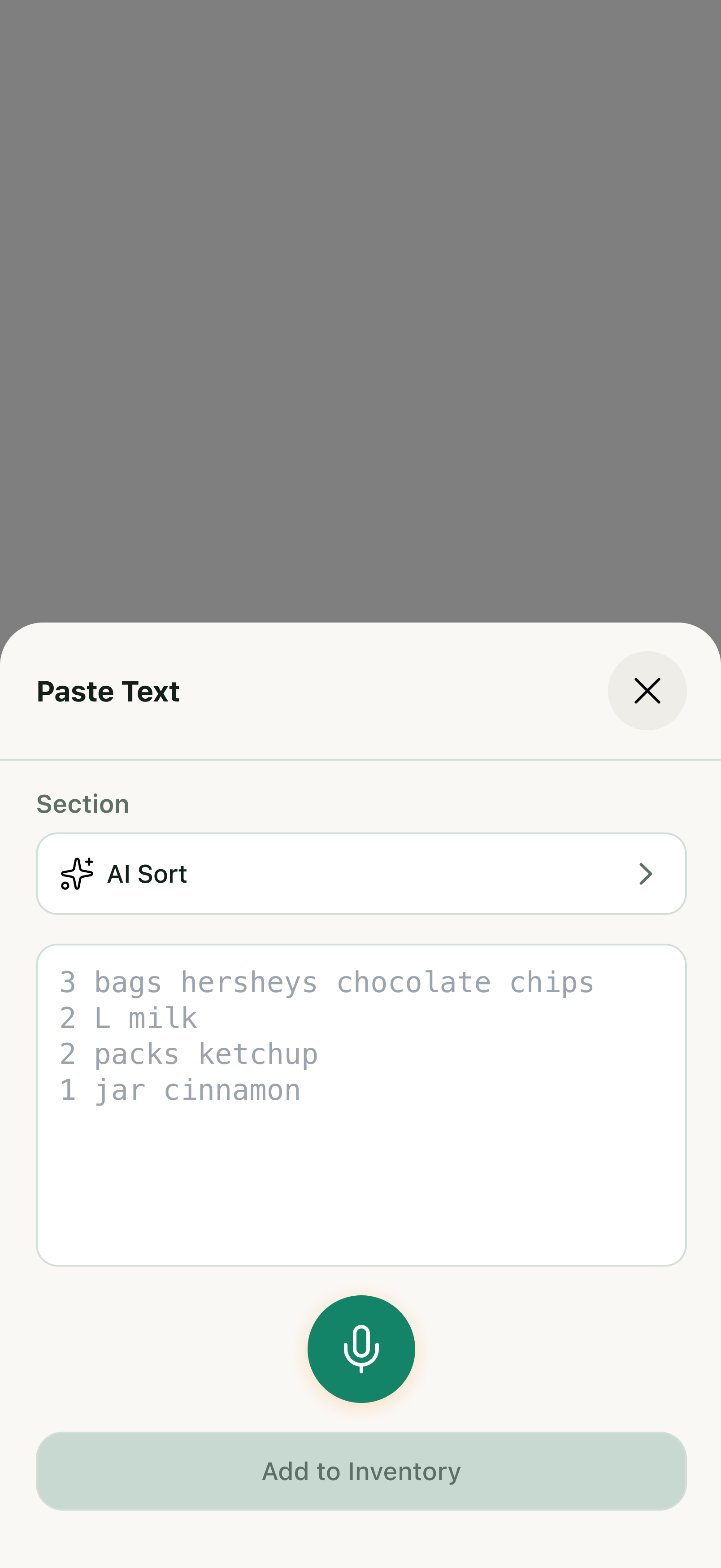
Adding new items to the pantry was time-consuming and inefficient, relying on rigid manual input that created friction during grocery logging.
Key Design Changes
Users can now update their inventory using flexible entry methods:
- Manual & Voice Input: Users can type ingredients directly or use voice commands (e.g., "2 Bananas") for rapid logging.
- Scanning Items: Contextual Scanning: Enabled direct scanning into specific storage spaces, allowing users to move through their kitchen and update item locations by area.
Shopping Page
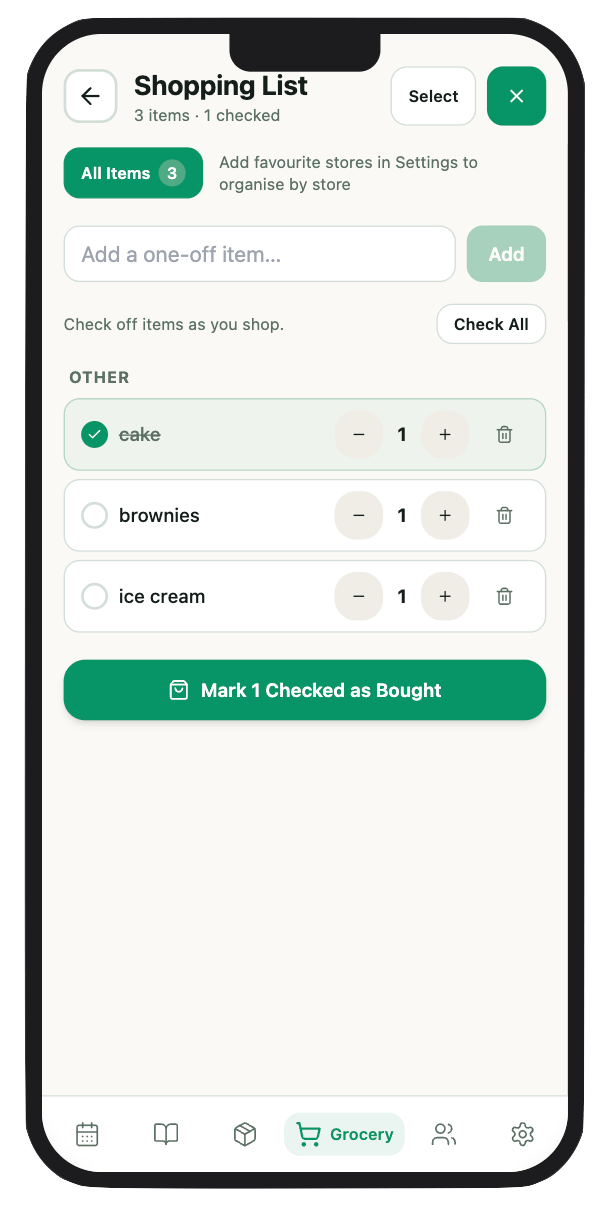
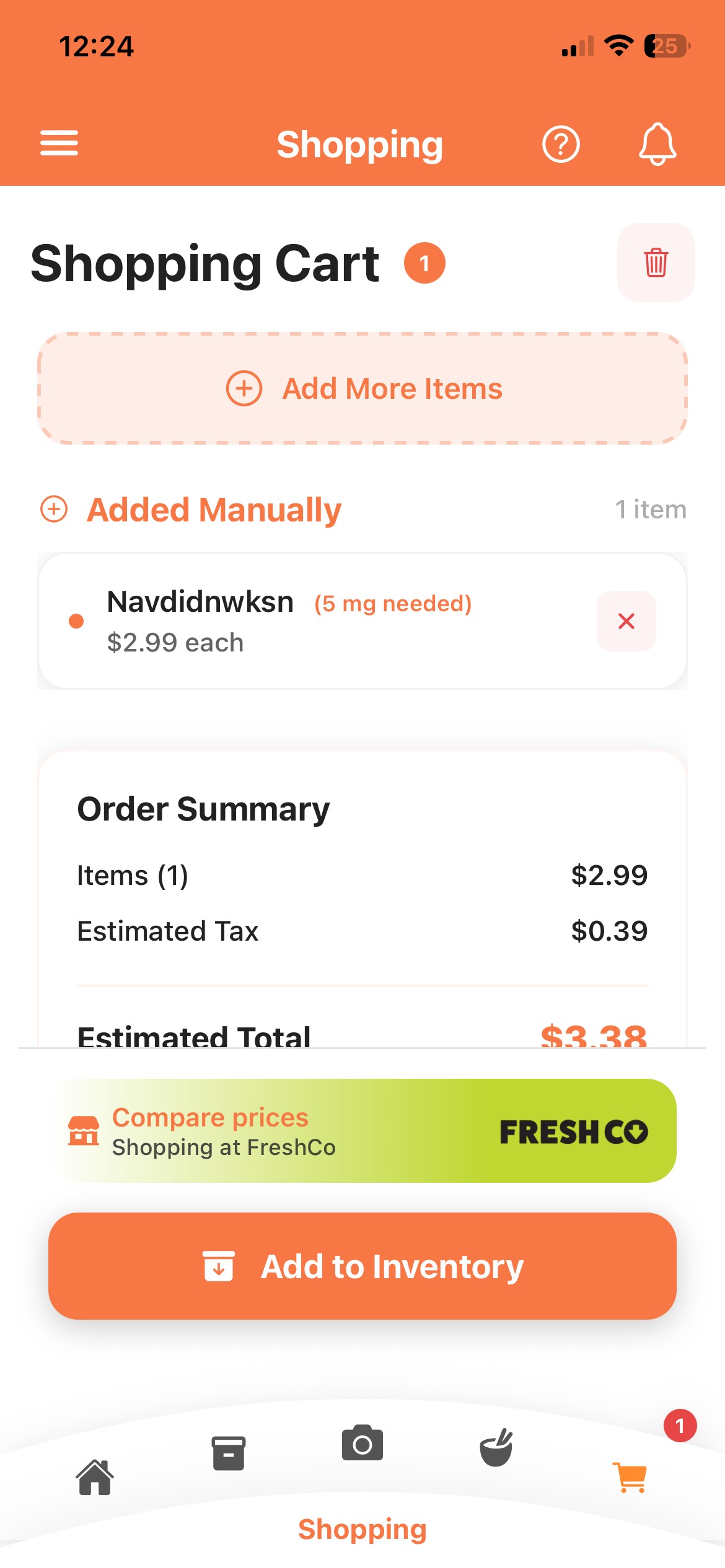
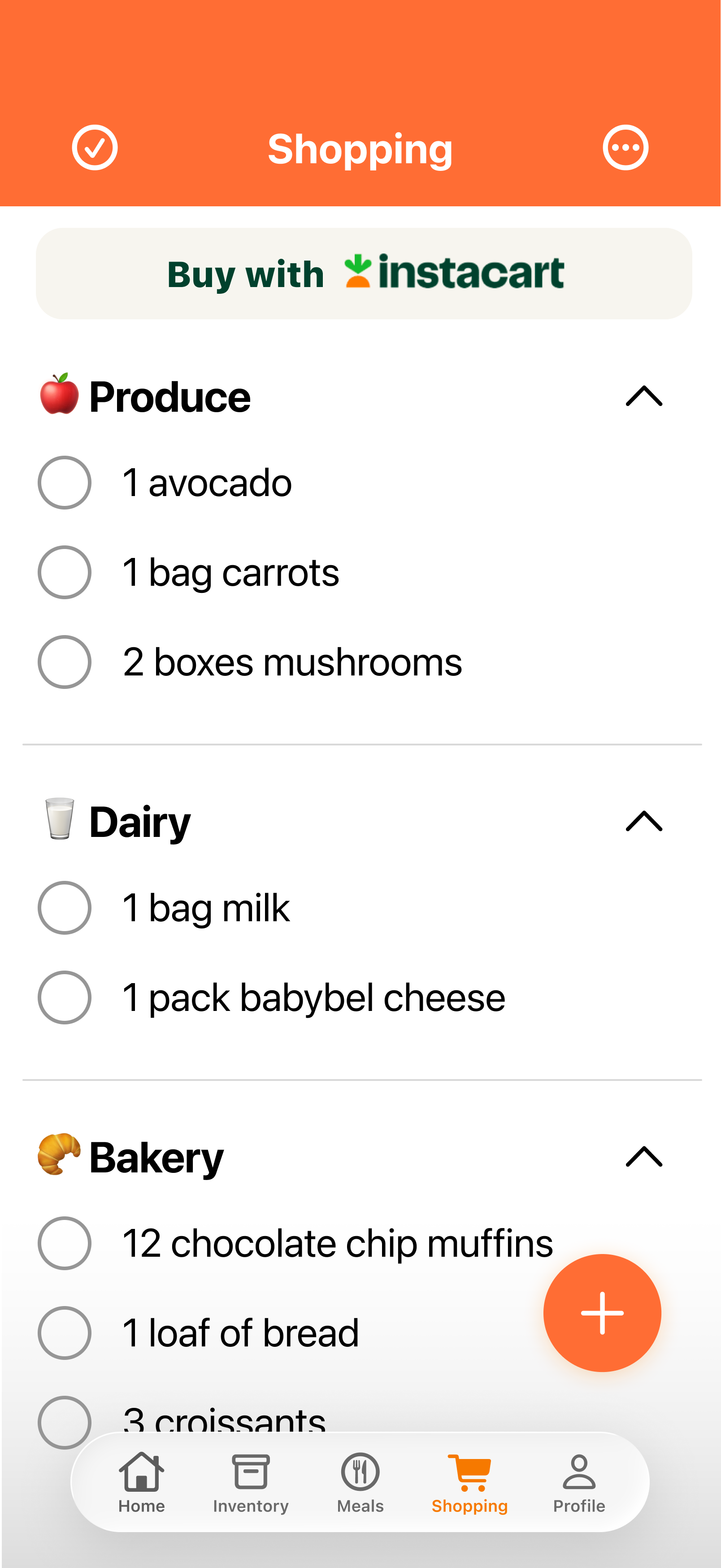
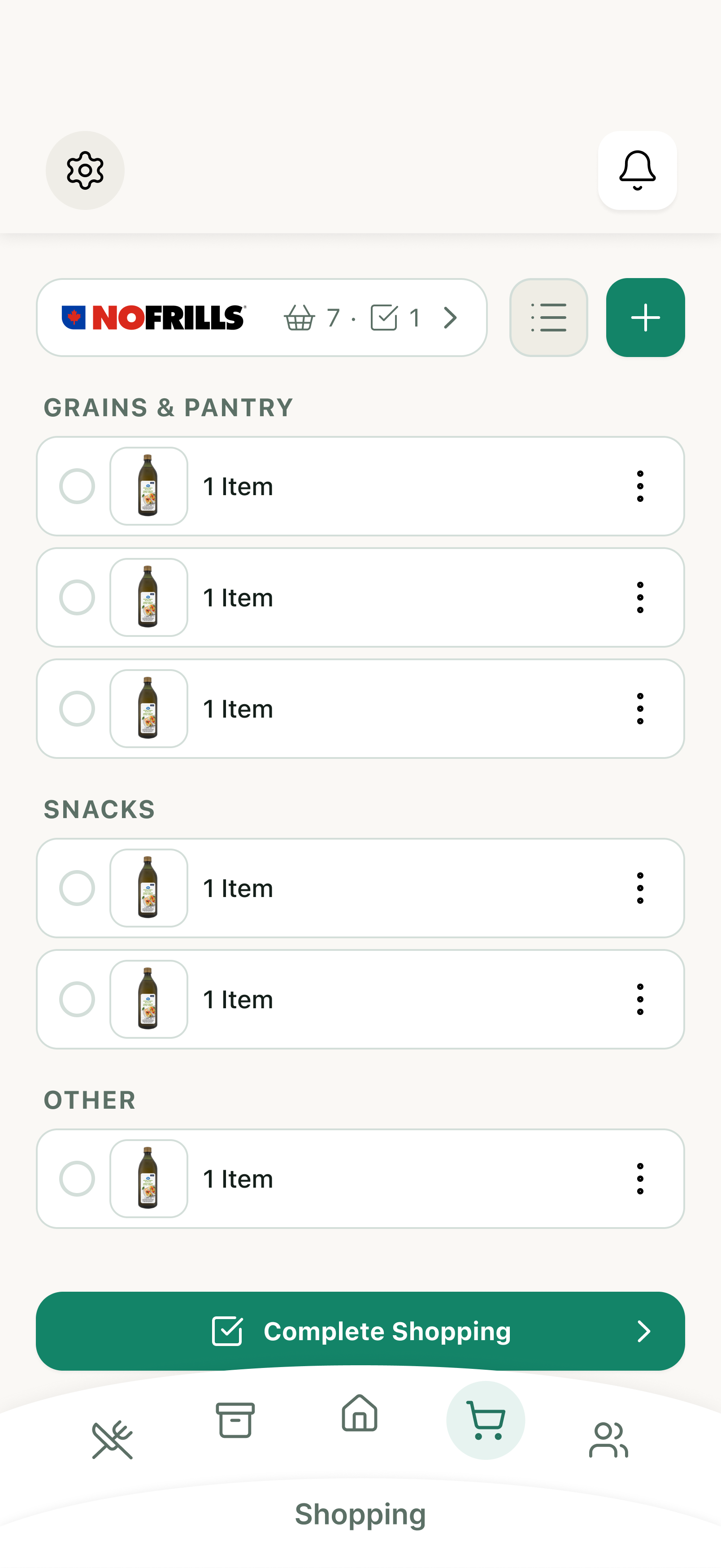
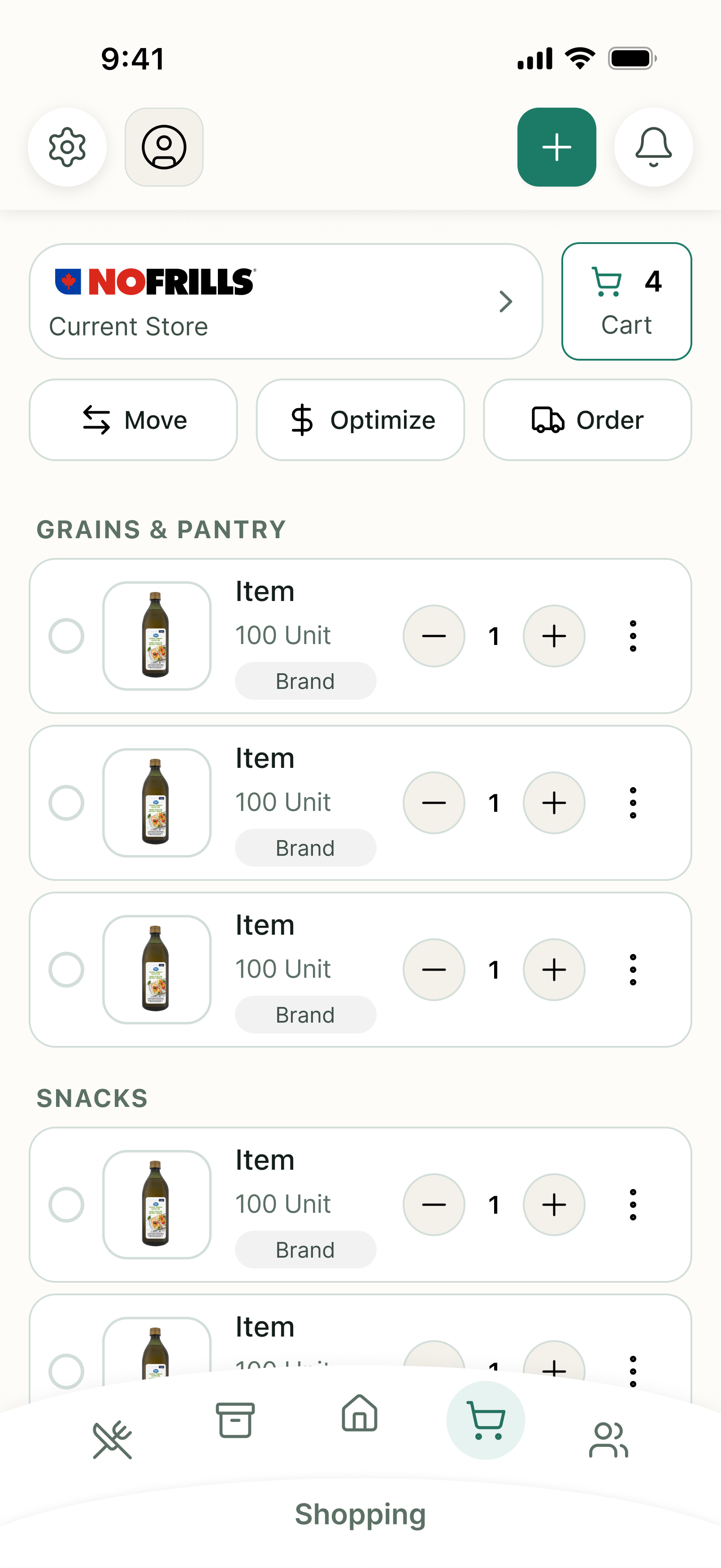
Managing grocery lists across multiple stores often leads to inefficient store trips, disorganization while walking down store aisles, and missed opportunities to save money.
Key Design Changes
- Multi-Store Organization: Grouped items by store (e.g., No Frills, Costco) to allow users to toggle between specific retailer lists or view a combined master list.
- Aisle-Based Categorization: Automatically categorized items within each store view (e.g., Produce, Dairy, Bakery) to streamline store navigation.
- Smart Price Optimization: Integrated an automated routing feature that analyzes price data and assigns items to the store where they are cheapest.
Accessibility
The original interface failed basic accessibility standards across colour contrast, font sizing, and touch target dimensions. I conducted a comprehensive accessibility audit to identify key usability barriers and redesigned the components to comply with standard accessibility guidelines.
Colour Contrast
The initial colour choices and tiny font sizes failed WCAG standards, which require minimum contrast ratios of 3:1 for large text and 4.5:1 for small text.
While a darker orange palette resolved contrast issues, it created a heavy visual feel. Using AI tools to evaluate colour combinations, I selected a refined green palette that satisfies WCAG criteria while elevating the UI aesthetics.
Original
2.84
Aa
2.73
Aa
2.05
Aa
Iteration 1
7.27
Aa
5.09
Aa
3.99
Aa
Iteration 2
5.02
Aa
4.51
Aa
4.51
Aa

Navigation Bar
Designing the main navigation bar involved balancing stakeholder goals with strict accessibility requirements. The product owner requested a custom curved design over standard native patterns. To ensure this unique constraint did not compromise user experience, I refined several key elements:
- Curve Refinement: Reduced the steep arch of the original menu to create a balanced container that doesn't intrude on page content.
- Reduced Redundancy: Removed repetitive page headers at the top of the screen, relying on clear bottom navigation labels.
- Accessible Active States: Replaced coloured icon states with a high-contrast circular indicator around active tabs, offering clearer visual feedback for users navigating the app.
The Final Prototype
Feel free to explore the differerent features across the app in this fully functional prototype!
Prototype Noodles
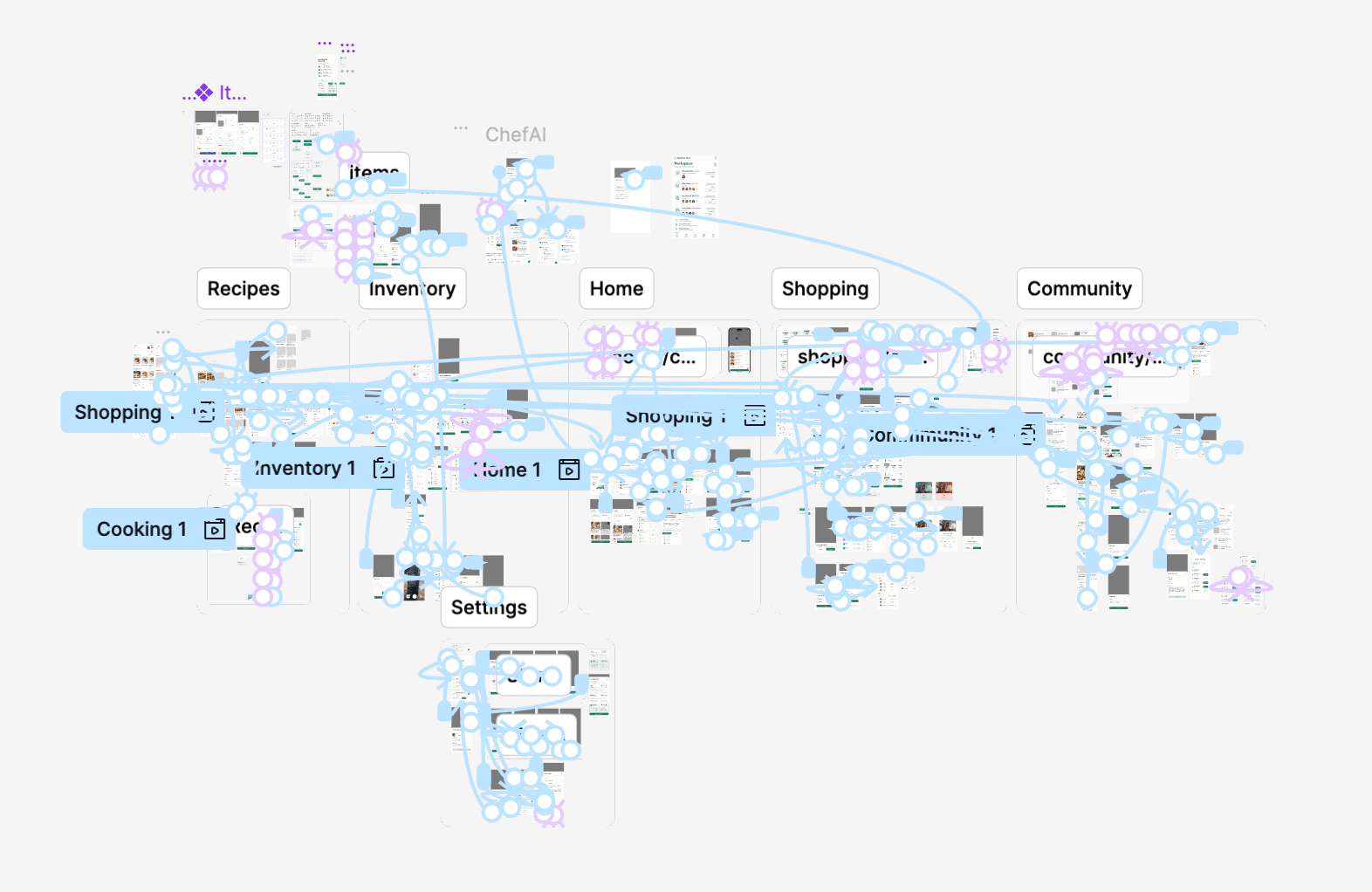
I built a high-fidelity prototype in Figma to map out end-to-end user journeys across every flow. Linking these screens established clear logic for developers and aligned stakeholder expectations on complex interactions.

The Prototype
Baila Hantsis
A Comprehensive Case Study
MealVue
The Future of Meal Planning & Inventory Management
UX/UI Designer
Feb. 2026 - Current
MealVue Platform Redesign
MealLens requested a complete redesign of their MealVue app. The goal was to prioritize accessibility while additionally integrating features that would be more understandable and user-friendly.
Background
MealLens aims to simplify kitchen inventory management and cooking for the average person, giving them more time to focus on what matters most. Spending quality time with family, or simply enjoying their day without stress.
from this...

to this!

Gathering Insights
First, I conducted a heuristic evaluation of the entire MealVue app according to Neilson's heuristics.
I identified multiple usability and accessibility points of friction in Google Sheets, which I compiled into a detailed document organized by page section.
Notable Points of Friction
The initial interface suffered from accessibility violations, redundant visual hierarchy, and an overwhelming home and navigation structure.
Separated quantity details could cause user confusion, while undersized stepper buttons compromised touch accuracy.
Logging items into inventory took unnecessary effort because users cannot make bulk updates or quickly adjust large item counts.
Shopping was inefficient due to poor cart usability and no way for users to check off items as they moved down the aisles.
Competitor Research







Inventory Management
- Supercook: The UI is visually overwhelming and lists every common pantry item.
- NoWaste: Separate tabs for receipt and grocery, and ability to take multiple photos.
- PantryCheck: Barcode scanning is simple and intuitive.
Takeaways
The home screen should focus on what users currently own. Group items into clean, consolidated food categories and only fill the pantry with what the users add themselves.
When adding ingredients to the pantry, use a unified, intelligent camera scan for receipts and barcodes. Ensure that each item that has been scanned is visible to the user.

Grocery Lists
- Recipe Box: Grocery list is visually clean separating ingredients by aisle.
- Supercook: Its voice recognition is excellent for quickly adding items to the inventory and shopping list. However, checked items stay on the list until manually deleted.
- Mealime: Adding groceries is incredibly easy and supports unit-less entries. However, placing ingredient amounts on the right side of the ingredient name can cause confusion on how much to buy.
Takeaway: Keep the main action buttons out of the navigation bar to save space. Ensure quantities are left-aligned for easy reading, and allow checklist item recovery. Organize ingredients by aisle.
Recipes & Meal Planning
- Mealime: Including instructions in recipe tab is useful to see how labour intensive a recipe can be, or if the user wants a quick glance at the instructions before cooking. Recipe pictures being squares is eye-catching.
- Tasty: Clear recipe time-limit indicators are useful, but the top-left indicators are overwhelming.
- ReciMe: Meal Planning page is a bit overwhelming, and meal times do not have customization.
Takeaway: Make recipe cards square and easy to scan. Focus on customization. For recipes, integrate the use of external links, images, and pasted text. Meal planning should be quick and intuitive.
Design Iterations
After developing the initial wireframes, I worked with my team to iterate on key user flows. I built an accessible UI library that standardized design patterns across the application, accelerating future product development.
In this design review, three design processes will be shown.
Namely, Home, Inventory, and Shopping.
AI Integration
After establishing initial wireframes, I leveraged Base44 to accelerate the second iteration of the redesign, quickly mapping out features across all user flows. Once this base was established, I critiqued, refined, and expanded upon the generated layout to create the final designs shown above.
- Rapid Prototyping: Used AI to quickly translate initial concepts into a fully scaffolded, feature-complete app framework.
- Strategic Refinement: Evaluated the AI output to pinpoint UX gaps, inconsistent UI patterns, and accessibility issues.
- Design Expansion: Built upon the baseline by polishing interaction models, improving component hierarchy, and expanding feature capabilities for the final solution.

Home Page
Large recipe photography limited viewable content to just two meals at a time, preventing users from tracking complete daily plans across breakfast, lunch, dinner, and snacks.
Key Design Changes
- Clearer Layout: Redesigned the main screen to focus on key tasks: viewing upcoming meals, checking recipes, and marking items as eaten.
- More Meals in View: Reduced photo sizes so users can see their entire day of meals at a glance without scrolling.
- Community Integration: Added a link to the community to the main page as requested by the product owner.


Inventory Page
The inventory system now provides seamless, real-time stock tracking with automated out-of-stock alerts that allow users to push missing ingredients directly to their shopping list in a single tap.
Key Design Changes
To support different physical and mental contexts, I designed two distinct organizational views:
- By Category (Produce, Dairy, Pantry): Optimized for quick recipe planning and item searching.
- By Location (Cabinets, Countertops, Shelves): Designed to streamline physical kitchen audits and make putting away groceries faster after a shopping trip.
As the categorgizaiton


Adding to Inventory
Adding new items to the pantry was time-consuming and inefficient, relying on rigid manual input that created friction during grocery logging.
Key Design Changes
Users can now update their inventory using flexible entry methods:
- Manual & Voice Input: Users can type ingredients directly or use voice commands (e.g., "2 Bananas") for rapid logging.
- Scanning Items: Contextual Scanning: Enabled direct scanning into specific storage spaces, allowing users to move through their kitchen and update item locations by area.
Shopping Page
Managing grocery lists across multiple stores often leads to inefficient store trips, disorganization while walking down store aisles, and missed opportunities to save money.
Key Design Changes
- Multi-Store Organization: Grouped items by store (e.g., No Frills, Costco) to allow users to toggle between specific retailer lists or view a combined master list.
- Aisle-Based Categorization: Automatically categorized items within each store view (e.g., Produce, Dairy, Bakery) to streamline store navigation.
- Smart Price Optimization: Integrated an automated routing feature that analyzes price data and assigns items to the store where they are cheapest.
Accessibility
The original interface failed basic accessibility standards across colour contrast, font sizing, and touch target dimensions. I conducted a comprehensive accessibility audit to identify key usability barriers and redesigned the components to comply with standard accessibility guidelines.
Colour Contrast
The initial colour choices and tiny font sizes failed WCAG standards, which require minimum contrast ratios of 3:1 for large text and 4.5:1 for small text.
While a darker orange palette resolved contrast issues, it created a heavy visual feel. Using AI tools to evaluate colour combinations, I selected a refined green palette that satisfies WCAG criteria while elevating the UI aesthetics.
Original
2.84
Aa
2.73
Aa
2.05
Aa
Iteration 1
7.27
Aa
5.09
Aa
3.99
Aa
Iteration 2
5.02
Aa
4.51
Aa
4.51
Aa

Navigation Bar
Designing the main navigation bar involved balancing stakeholder goals with strict accessibility requirements. The product owner requested a custom curved design over standard native patterns. To ensure this unique constraint did not compromise user experience, I refined several key elements:
- Curve Refinement: Reduced the steep arch of the original menu to create a balanced container that doesn't intrude on page content.
- Reduced Redundancy: Removed repetitive page headers at the top of the screen, relying on clear bottom navigation labels.
- Accessible Active States: Replaced coloured icon states with a high-contrast circular indicator around active tabs, offering clearer visual feedback for users navigating the app.
The Final Prototype
Feel free to explore the differerent features across the app in this fully functional prototype!
Prototype Noodles
I built a high-fidelity prototype in Figma to map out end-to-end user journeys across every flow. Linking these screens established clear logic for developers and aligned stakeholder expectations on complex interactions.

The Prototype
Baila Hantsis
A Comprehensive Case Study
MealVue
The Future of Meal Planning & Inventory Management
UX/UI Designer
Feb. 2026 - Current
MealVue Platform Redesign
MealLens requested a complete redesign of their MealVue app. The goal was to prioritize accessibility while additionally integrating features that would be more understandable and user-friendly.
Background
MealLens aims to simplify kitchen inventory management and cooking for the average person, giving them more time to focus on what matters most. Spending quality time with family, or simply enjoying their day without stress.
from this...

to this!

Gathering Insights
First, I conducted a heuristic evaluation of the entire MealVue app according to Neilson's heuristics.
I identified multiple usability and accessibility points of friction in Google Sheets, which I compiled into a detailed document organized by page section.
Notable Points of Friction
The initial interface suffered from accessibility violations, redundant visual hierarchy, and an overwhelming home and navigation structure.
Separated quantity details could cause user confusion, while undersized stepper buttons compromised touch accuracy.
Logging items into inventory took unnecessary effort because users cannot make bulk updates or quickly adjust large item counts.
Shopping was inefficient due to poor cart usability and no way for users to check off items as they moved down the aisles.
Competitor Research
Inventory Management
- Supercook: The UI is visually overwhelming and lists every common pantry item.
- NoWaste: Separate tabs for receipt and grocery, and ability to take multiple photos.
- PantryCheck: Barcode scanning is simple and intuitive.
Takeaways
The home screen should focus on what users currently own. Group items into clean, consolidated food categories and only fill the pantry with what the users add themselves.
When adding ingredients to the pantry, use a unified, intelligent camera scan for receipts and barcodes. Ensure that each item that has been scanned is visible to the user.

Grocery Lists
- Recipe Box: Grocery list is visually clean separating ingredients by aisle.
- Supercook: Its voice recognition is excellent for quickly adding items to the inventory and shopping list. However, checked items stay on the list until manually deleted.
- Mealime: Adding groceries is incredibly easy and supports unit-less entries. However, placing ingredient amounts on the right side of the ingredient name can cause confusion on how much to buy.
Takeaway: Keep the main action buttons out of the navigation bar to save space. Ensure quantities are left-aligned for easy reading, and allow checklist item recovery. Organize ingredients by aisle.
Recipes & Meal Planning
- Mealime: Including instructions in recipe tab is useful to see how labour intensive a recipe can be, or if the user wants a quick glance at the instructions before cooking. Recipe pictures being squares is eye-catching.
- Tasty: Clear recipe time-limit indicators are useful, but the top-left indicators are overwhelming.
- ReciMe: Meal Planning page is a bit overwhelming, and meal times do not have customization.
Takeaway: Make recipe cards square and easy to scan. Focus on customization. For recipes, integrate the use of external links, images, and pasted text. Meal planning should be quick and intuitive.
Design Iterations
After developing the initial wireframes, I worked with my team to iterate on key user flows. I built an accessible UI library that standardized design patterns across the application, accelerating future product development.
In this design review, three design processes will be shown.
Namely, Home, Inventory, and Shopping.
AI Integration
After establishing initial wireframes, I leveraged Base44 to accelerate the second iteration of the redesign, quickly mapping out features across all user flows. Once this base was established, I critiqued, refined, and expanded upon the generated layout to create the final designs shown above.
- Rapid Prototyping: Used AI to quickly translate initial concepts into a fully scaffolded, feature-complete app framework.
- Strategic Refinement: Evaluated the AI output to pinpoint UX gaps, inconsistent UI patterns, and accessibility issues.
- Design Expansion: Built upon the baseline by polishing interaction models, improving component hierarchy, and expanding feature capabilities for the final solution.

Home Page
Large recipe photography limited viewable content to just two meals at a time, preventing users from tracking complete daily plans across breakfast, lunch, dinner, and snacks.
Key Design Changes
- Clearer Layout: Redesigned the main screen to focus on key tasks: viewing upcoming meals, checking recipes, and marking items as eaten.
- More Meals in View: Reduced photo sizes so users can see their entire day of meals at a glance without scrolling.
- Community Integration: Added a link to the community to the main page as requested by the product owner.
Inventory Page
The inventory system now provides seamless, real-time stock tracking with automated out-of-stock alerts that allow users to push missing ingredients directly to their shopping list in a single tap.
Key Design Changes
To support different physical and mental contexts, I designed two distinct organizational views:
- By Category (Produce, Dairy, Pantry): Optimized for quick recipe planning and item searching.
- By Location (Cabinets, Countertops, Shelves): Designed to streamline physical kitchen audits and make putting away groceries faster after a shopping trip.
Streamlined View Switching: Relocated the view toggle into the filter menu during Iteration 3, reducing visual clutter since users rarely change their categorization preferences.
Adding to Inventory
Adding new items to the pantry was time-consuming and inefficient, relying on rigid manual input that created friction during grocery logging.
Key Design Changes
Users can now update their inventory using flexible entry methods:
- Manual & Voice Input: Users can type ingredients directly or use voice commands (e.g., "2 Bananas") for rapid logging.
- Scanning Items: Contextual Scanning: Enabled direct scanning into specific storage spaces, allowing users to move through their kitchen and update item locations by area.
Shopping Page
Managing grocery lists across multiple stores often leads to inefficient store trips, disorganization while walking down store aisles, and missed opportunities to save money.
Key Design Changes
- Multi-Store Organization: Grouped items by store (e.g., No Frills, Costco) to allow users to toggle between specific retailer lists or view a combined master list.
- Aisle-Based Categorization: Automatically categorized items within each store view (e.g., Produce, Dairy, Bakery) to streamline store navigation.
- Smart Price Optimization: Integrated an automated routing feature that analyzes price data and assigns items to the store where they are cheapest.
Accessibility
The original interface failed basic accessibility standards across colour contrast, font sizing, and touch target dimensions. I conducted a comprehensive accessibility audit to identify key usability barriers and redesigned the components to comply with standard accessibility guidelines.
Colour Contrast
The initial colour choices and tiny font sizes failed WCAG standards, which require minimum contrast ratios of 3:1 for large text and 4.5:1 for small text.
While a darker orange palette resolved contrast issues, it created a heavy visual feel. Using AI tools to evaluate colour combinations, I selected a refined green palette that satisfies WCAG criteria while elevating the UI aesthetics.
Original
2.84
Aa
2.73
Aa
2.05
Aa
Iteration 1
7.27
Aa
5.09
Aa
3.99
Aa
Iteration 2
5.02
Aa
4.51
Aa
4.51
Aa

Navigation Bar
Designing the main navigation bar involved balancing stakeholder goals with strict accessibility requirements. The product owner requested a custom curved design over standard native patterns. To ensure this unique constraint did not compromise user experience, I refined several key elements:
- Curve Refinement: Reduced the steep arch of the original menu to create a balanced container that doesn't intrude on page content.
- Reduced Redundancy: Removed repetitive page headers at the top of the screen, relying on clear bottom navigation labels.
- Accessible Active States: Replaced coloured icon states with a high-contrast circular indicator around active tabs, offering clearer visual feedback for users navigating the app.
The Final Prototype
Feel free to explore the differerent features across the app in this fully functional prototype!
Prototype Noodles
I built a high-fidelity prototype in Figma to map out end-to-end user journeys across every flow. Linking these screens established clear logic for developers and aligned stakeholder expectations on complex interactions.

The Prototype